Getting started
What the editor can do, how the screen is laid out and how to save your work safely.
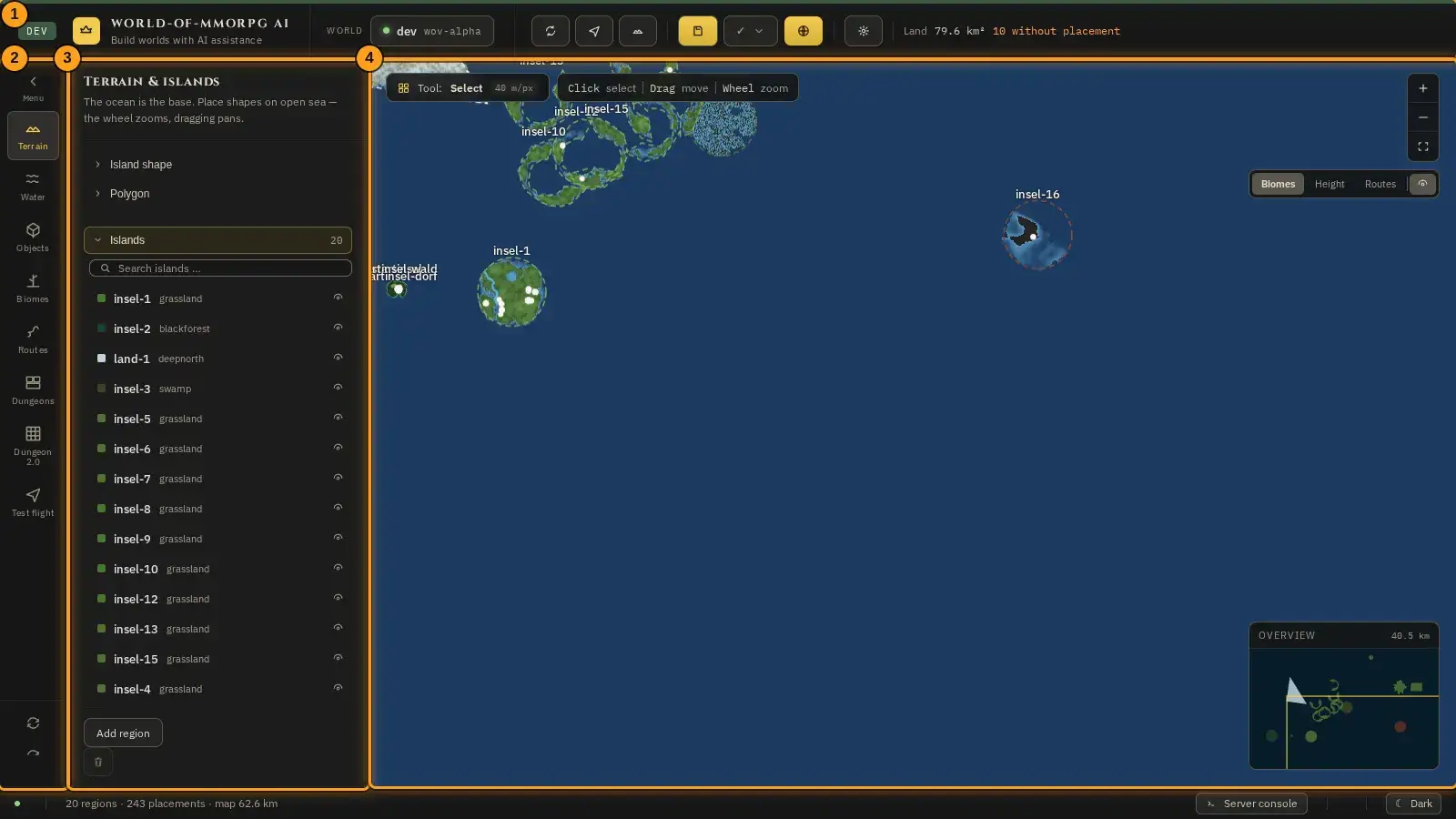
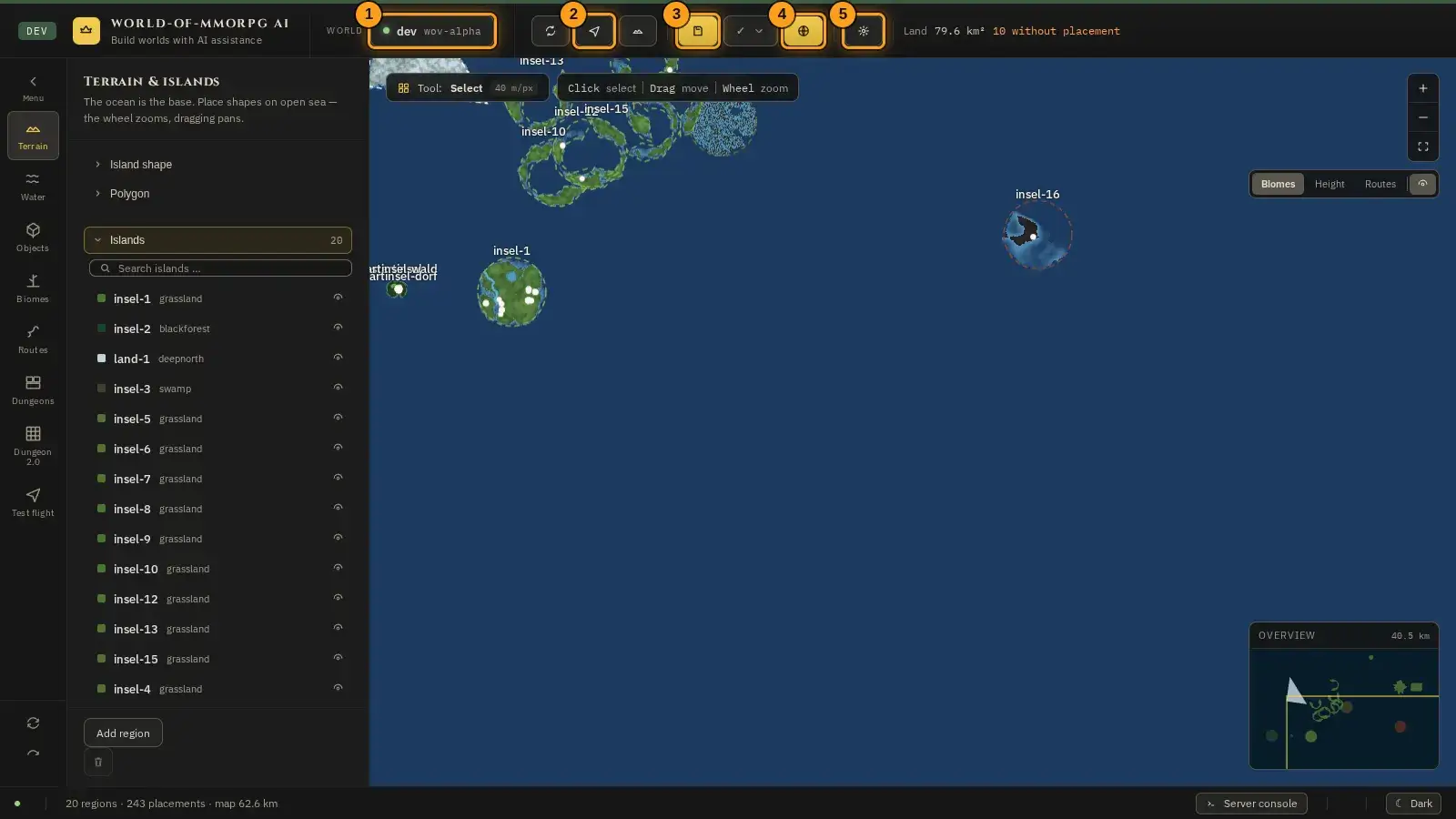
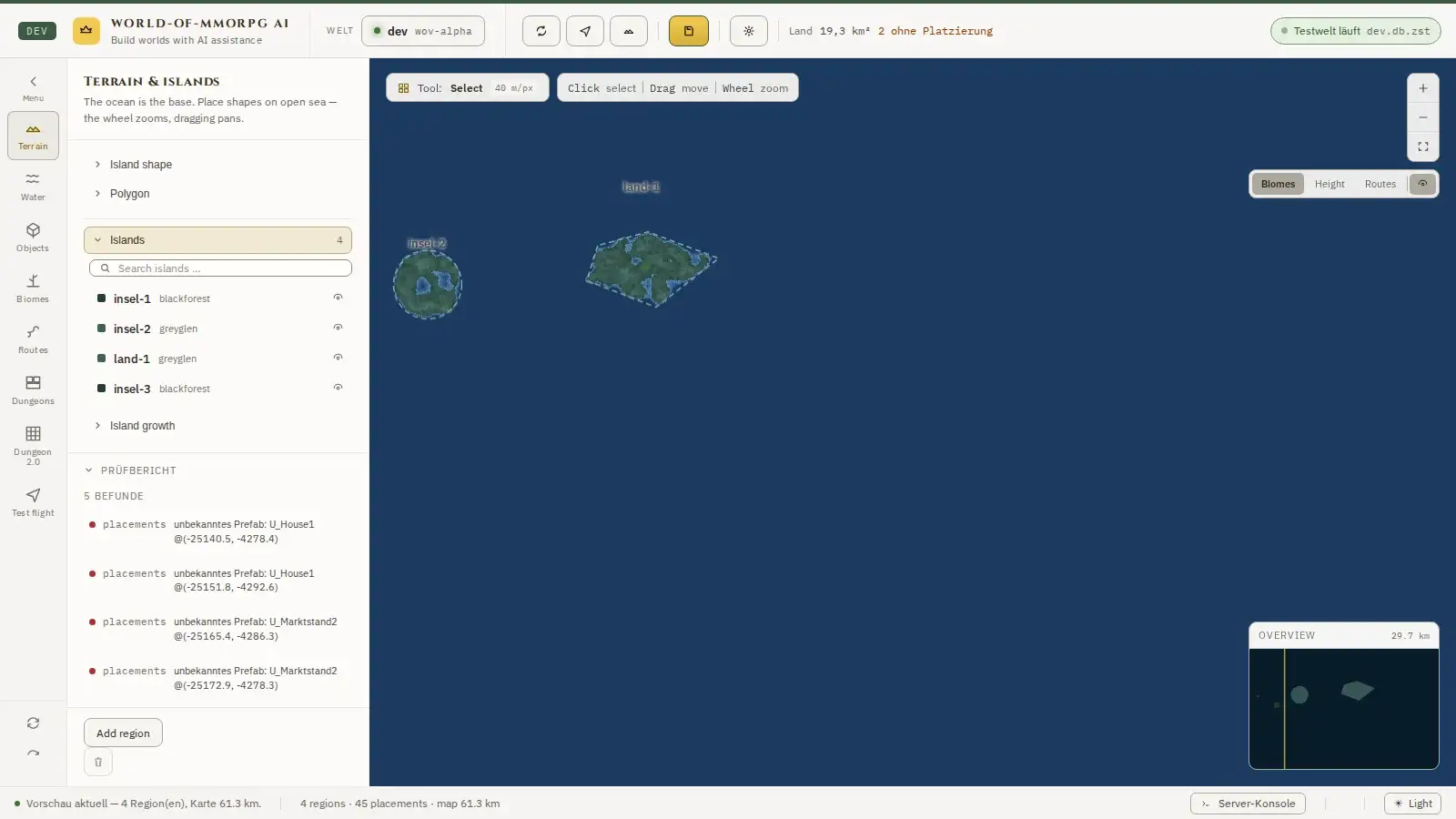
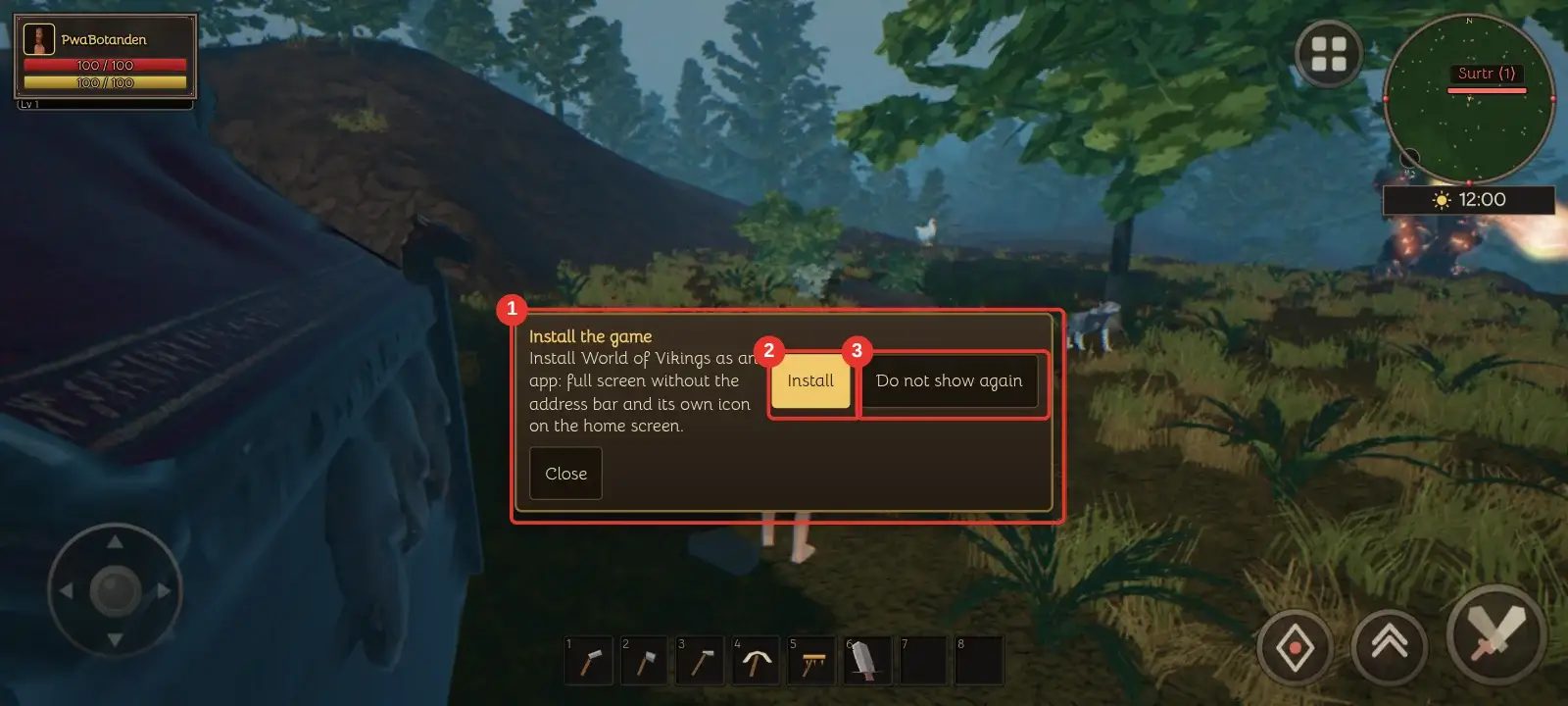
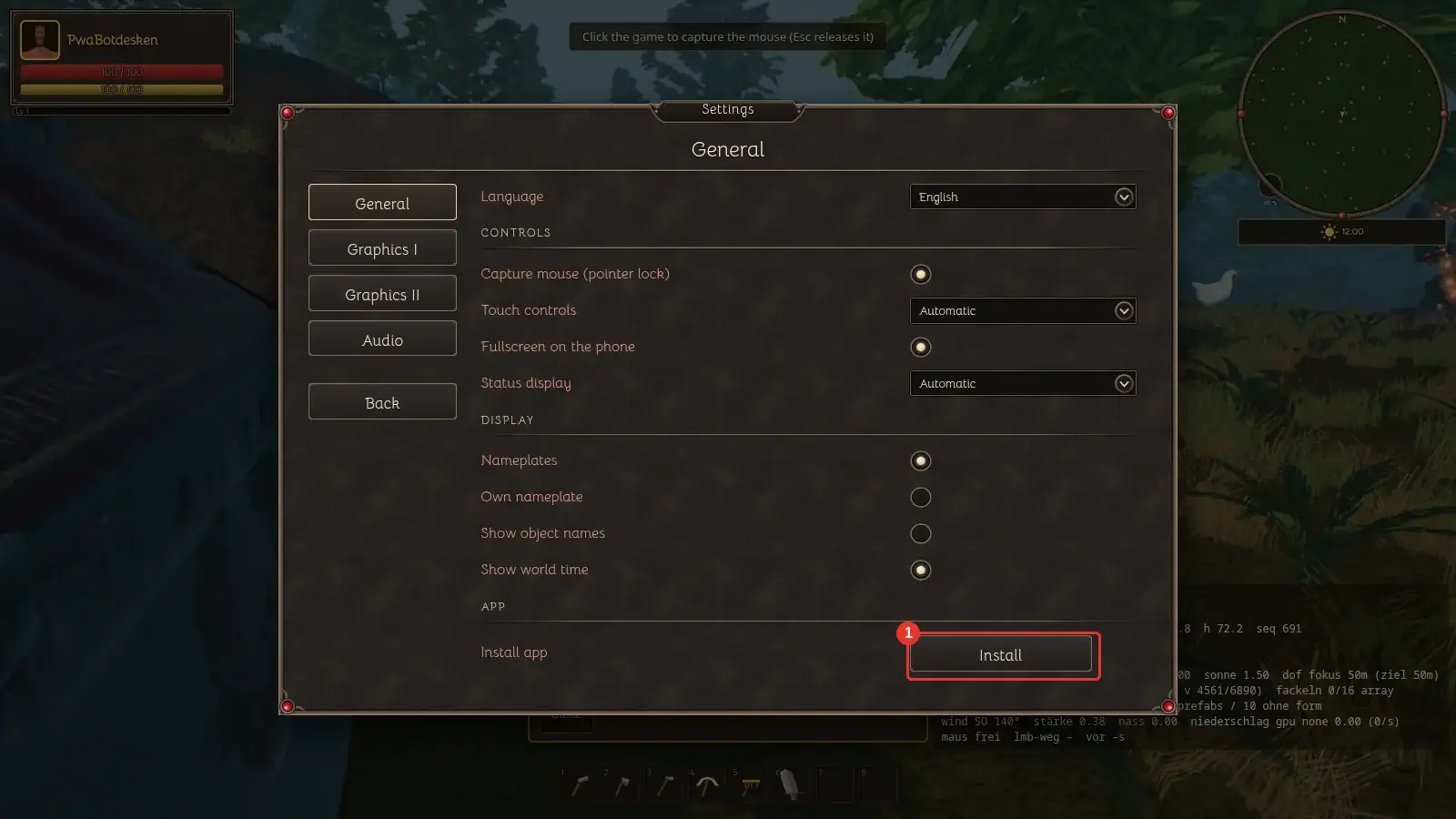
The pictures show the editor with sample data. The orange frames and numbers refer to the steps in the text.
Getting to know the screen
What for?
The editor is your workshop for worlds: you draw islands and water, place objects, set light and weather and build dungeons. A map from above shows you everything, and one click lets you fly through your work in 3D.
How it works
- The header (1) sits at the top: the world you are editing, the view with “Rebuild preview”, “Test flight” and “Island picker”, the save button and “Operations ⋯” on the far right. Right next to the save button sits the counter button “N unsaved”: it names the number of open documents (creatures, effects, items, biomes, tier animation, world) and opens the change list — see the chapter “Draft, saving and the server” for that. Behind it lie the maintenance actions: test the map live, bring back the dev world, restart, stop and start the server, orphaned worlds, export and import.
- On the left (2) you choose the mode. The eight tiles stand in the order of the six steps of the assistant, and small captions name the step: Land (Terrain), Landscape (Biomes), Water, Furnish (Objects, Dungeons, Dungeon 2.0), Inhabitants (Routes) and Try it out (Test flight). The captions are no buttons and are skipped when you walk through with the Tab key; they stay when the navigation is folded in. Every tile is a button: the Tab key reaches it, Enter or the space bar switches, and the chosen mode is highlighted.
- Next to it (3) the side panel shows the menu of the chosen mode – and only its content. Every menu item unfolds its own content, and at most one is open at a time: Terrain has “Island shape”, “Polygon”, “Islands” and “Island growth”, Water has “River”, “Lake” and “Waters”, Objects has the groups with the list of placed objects, Routes shows just a note. The arrow keys move from menu item to menu item, Enter or Space unfolds and folds.
- The map (4) fills the rest. The mouse wheel zooms, dragging moves the view, a click selects something.
- After a mouse click the focus returns to the map, so keys such as P, V and T belong to the tool again. If you switch the language, the mode labels and the catalogue texts follow at once.
Tip: The editor keeps your draft in your browser. The world on the server only changes when you save – more on that in the next chapter.
Draft, saving and server
What for?
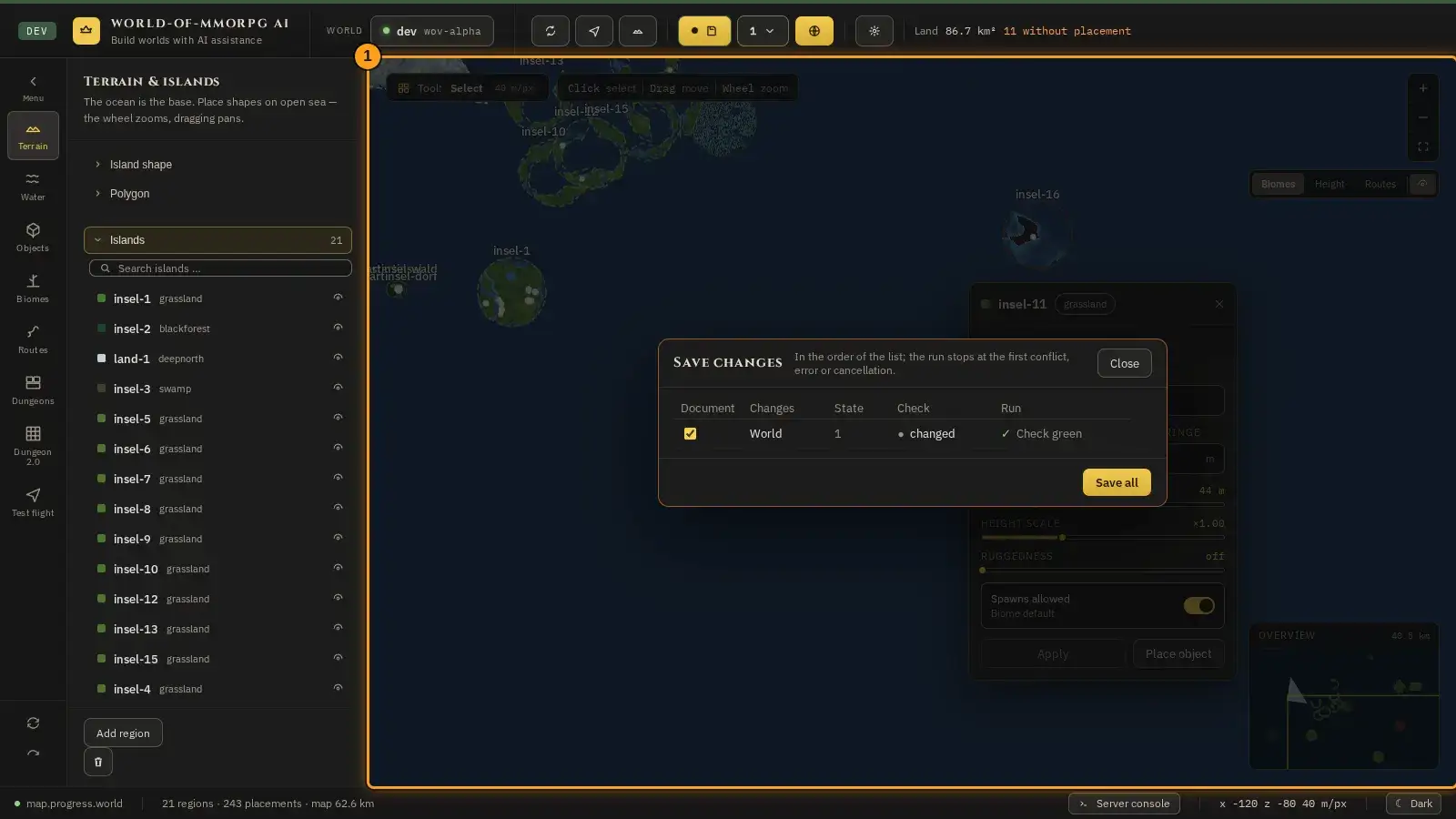
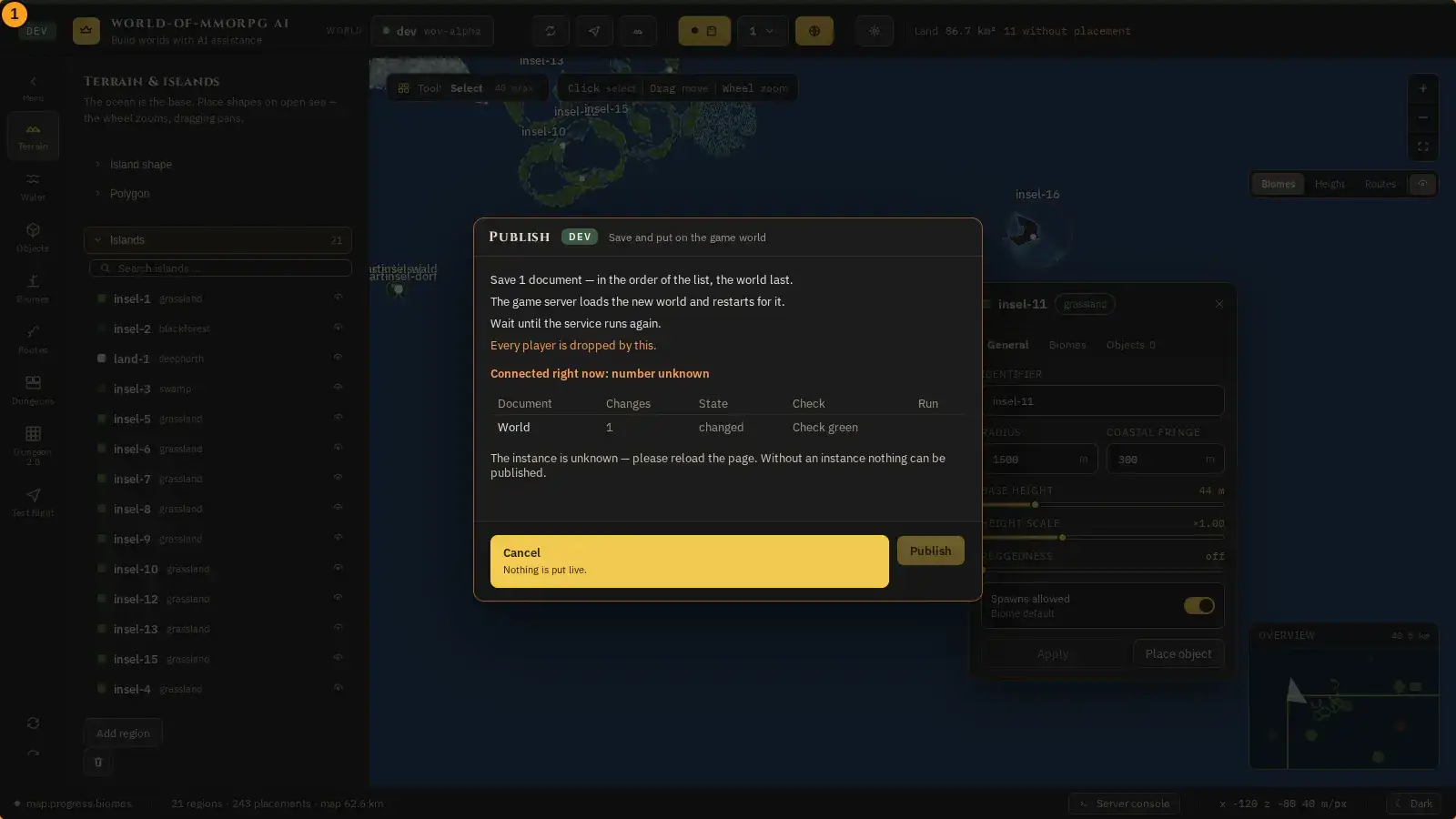
Everything you draw is first a draft in your browser. The counter button in the header shows how many documents are open, and “Save all” writes them into the world on the server in the order of the list. That is how you can try things out at ease. “Save all” changes nothing in the running game — only “Publish” saves AND puts the game world live, and for that the server restarts.
How it works
- The counter button next to the save button shows the number of open documents — even when the header turns narrow and hides the long button texts; at zero it shows a check mark, dimmed. With nothing open the button reads “All saved” and cannot be clicked.
- A click on the counter (or Alt+S) opens the change list: one row per document with its number of changes, its state (changed, conflict, error) and the check lamp — always as text and symbol, never colour alone. The order is the write order: effects, items, creatures, tier animation, biomes, world last. The number of open documents is read from the directory on every input, every click, after every save run and when the list closes. Alt+S opens the list only when no other window lies above it: no question of the editor, no question of a mask, no “New biome” assistant, no upload curtain and no “Reset world” dialog.
- The box in front of each row says whether it is saved along. Every changed row is ticked; a row with a red check is not — it could not be saved as it stands. If you want to write it anyway, tick it and choose “Save anyway”: the editor asks a second time beforehand.
- “Save all” writes the ticked documents one after another, each through its own path. At the first conflict, error or cancellation the run stops: the stopping row is marked, every later row reads “not executed”, and nothing further is written. After the run the dialog reads the states from the directory again — it never asserts a state of its own. The 60-second deadline only counts the time when nobody is being asked: while a question or “Really overwrite?” is open, it rests — you may read and answer in peace. Only if the server stays silent for 60 seconds with no question open does that document count as an error (deadline) and the run stop.
- A conflict means someone else saved first. The row offers “Open reconcile” — the same path as elsewhere (the document’s mask, and for the world the comparison of server states). Nothing is overwritten by it. While a run is writing, Close and Alt+S are locked, and the bronze button does not write either. While a save run is active, the editor starts no server restart, switches no test world and does not reset the world: “Test map live”, “Restore dev world”, “Restart server” and “Start” in the “Operation” menu plus “Reset world” in the World tab then say that a run is active instead of asking. “Stop” deliberately works during a run as well — an emergency stop must never wait. A stuck lock (for example after a closed window) is lifted by the operator through the operations service’s “aufheben” action; there is no button for it in the editor yet. Escape then ends nothing. Escape answers only questions that have an Escape path: the list’s “Save anyway?” and the creature mask’s question (both with “No”); “Really overwrite?”, the questions of biomes, items, effects and tier animation and the “Reset world” dialog have no Escape path and stay open. Escape closes the list when no run is active and returns the focus to the counter; the bronze button next to it still saves only the world. If the server does not answer within 15 seconds while saving the world or the tier animation, the editor does not say “not saved” but “unclear”: the server may have written. For the world you then reload via “World” or reconcile before saving again; the tier animation keeps your draft and asks about reloading on the next save — nothing is discarded.
- The Publish button in the header saves all open documents and then puts them on the game world: a running test world is rebuilt, otherwise the game server restarts — every player is dropped by this. The run takes over only if every document really was saved; otherwise the footer says “Saved n of m — … not saved (reason); game world NOT updated”, and the server does not restart. Red rows: the editor offers “Publish anyway” only when the red document’s mask really allows overriding the check (today only the tier animation). For creatures, effects, items and biomes you must fix the error in the mask; while the row stays red, nothing is put live. If there is nothing to save, publishing only puts the world live — the window says so (“Nothing to save — put live only.”). On every instance except dev, the run asks once more while saving the world “Really overwrite?”: if you decline, the world counts as not saved and nothing is put live. Beforehand the window names the number of players logged in (or “number unknown”) and the documents that will be written. The number is read when the window opens and once more when the run starts: if more players are connected by then, the run does not start but names the new number and asks for a second click. If the world is live, the button stays off until you have typed the instance name (live); on dev no typed confirmation is needed, it applies only on live and when the instance is unknown. If a publish run is already active — in this window, in another one, or after a reload — the editor says so instead of starting a second one. While documents are being saved you can cancel; after the restart command you cannot. While the player count is being re-read, “Re-reading the player count …” stands in the window and the start button stays off. If the fresh number takes longer than 5 seconds, the run starts with the previous figure. A cancel in this time ends the start attempt immediately: the window closes, the editor reports “Publishing cancelled.”, and the reading is discarded — nothing is written. A cancel once the start has been requested, while the service has not handed out the lock yet, is noted; it takes effect as soon as the service answers, and nothing is written then. If the start already fails (the service is unreachable or answers with an error), the reason stays in the window and the start button is usable again. If a single mask fails, the partial state above applies: no further document is written, nothing is put live, and the window stays open. If the run itself fails while saving after it has started, however, the message says so explicitly (“Publishing failed mid-run: …”, not “not started”), the window stays open, and the rows say what was written. Before putting the world live the editor renews the publish lock (the service sets it to 15 minutes) and waits at most 10 seconds for the answer; if it does not come, nothing is put live and the message names the 10 seconds. With the switch to putting it live the window closes; if putting it live fails, the message “Putting it live failed: …” stands in the footer. If a document that was clean when the window opened becomes unsaved again before or during the run, the success message afterwards names the document that was therefore not published. A document without a known title appears in that list as “An unknown document” — without an identifier.
Tip: If you leave the page with unsaved documents, the browser asks first. After a stop the draft stays: it is not lost, only not written — resolve the conflict and save again.
If something does not work
- Saving is refused because the world has changed in the meantime.
- Someone has changed the world on the server, and the editor never overwrites anything it does not know. Click the “World” field at the top: the editor fetches the server state and shows you a comparison. Choose “Keep draft” there and save again afterwards.
- A row has a red check, and “Save all” is disabled.
- A red check means the document cannot be saved as it stands, which is why its box is empty. Fix the error in the document’s mask, or tick the row and choose “Save anyway” — the editor then asks a second time.
- The editor says that a publish run is already active.
- Wait until the other window is done (it shows the start time), or until the lock expires: it lasts at most 15 minutes after the last step. Closing or reloading a window does NOT release the lock. As an operator you lift it with the operations service’s “aufheben” action; there is no button for that in the editor yet.
The Operations menu
What for?
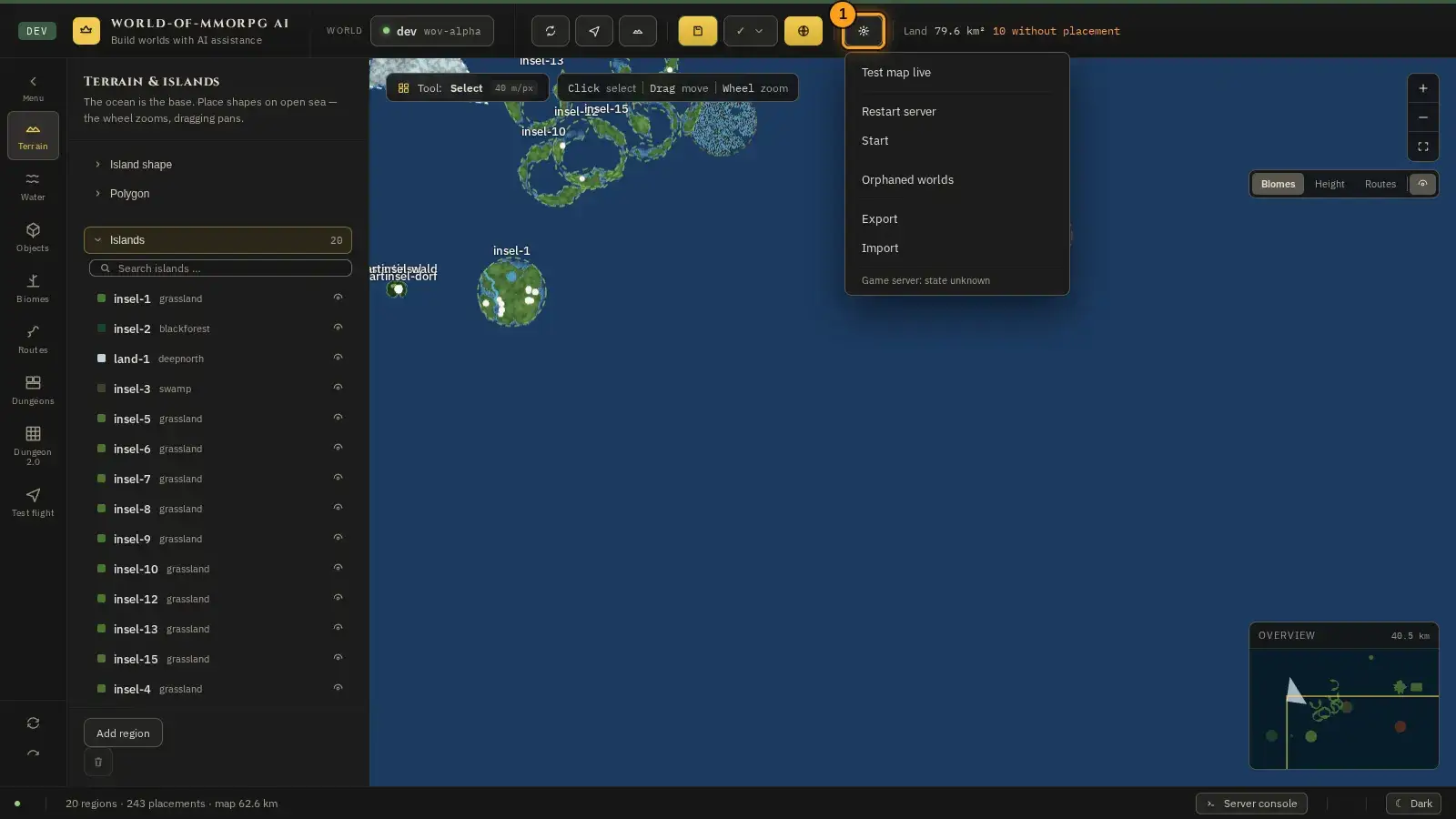
All maintenance actions of the editor sit behind one button at the top right. That leaves the daily actions visible in the header bar, and a “Stop server” button no longer sits next to Save.
How it works
- Open “Operations ⋯” at the top right of the header bar (1). The menu unfolds below it and shows the entries Test map live, Restore dev world, Restart server, Stop or Start, Orphaned worlds, Export and Import. “Restore dev world” and one of the two server buttons only appear when they apply.
- “Test map live” saves your draft, sets the world file aside and restarts the game server with the fresh map. If a test world is already running, the editor asks whether to renew it.
- “Restore dev world” only appears while a test world is running: it restores the set-aside world file and restarts the game server. Below the entries you see the game server state and the three menu entries “Restart server”, “Stop” and “Start”. Restart and Stop ask before they act, Start does not. “Test map live” and “Restore dev world” ask before they act as well.
- “Orphaned worlds” opens the list of stored world identities. “Export” writes the draft as JSON to the download folder, “Import” reads such a file back in as a draft.
- By keyboard: arrow up and down move through the entries, Home and End jump to the start and the end, Enter or Space choose, Escape closes. A click next to the menu closes it too; focus then returns to the button.
- Setting the world to zero: in the World tab, “Reset world …” opens a dialog (blocked on the live instance). Beforehand it names, with the real numbers, what will be removed and what stays, and asks you to type the name of the instance. For the terrain seed you choose “Keep seed” or “Roll a new seed”. “Keep seed” only works while the world document is readable: if it is missing or unreadable there is no seed to keep. Then “Keep seed” is disabled, the dialog selects “Roll a new seed” and says in the “What will be removed” list that the seed is rolled anew. The operations service also refuses “keep” in that case, with the message “The world document is missing or unreadable”, and touches nothing. Nothing is deleted: the saved game and the world document are backed up and put aside under a name with a timestamp. If you save in the editor while the service is resetting the world, the reset aborts: the service puts everything back, starts the server again and reports that the world document was saved (if someone deleted it in the meantime, it reports that it was deleted). The same applies if the world document was missing at the start and the editor creates it in the meantime. Your saved state is kept; start the reset again if you still want it. If you save only after the service has written the new world document, the reset goes through; your save then reports a conflict and you reload the world. If the world document is a symlink without a target or a symlink that points in a circle, the service aborts at once: the message reads “The world document is a symlink without a target” or “… symlink loop”, no backup is attempted, and nothing is touched. Remove or repair the symlink and start the reset again.
Tip: The entries follow the server: “Stop” is only visible while the game server runs, “Start” only while it is stopped.
Controls: menu, undo and zoom
What for?
A few handy moves make working with the editor much faster and safer.
How it works
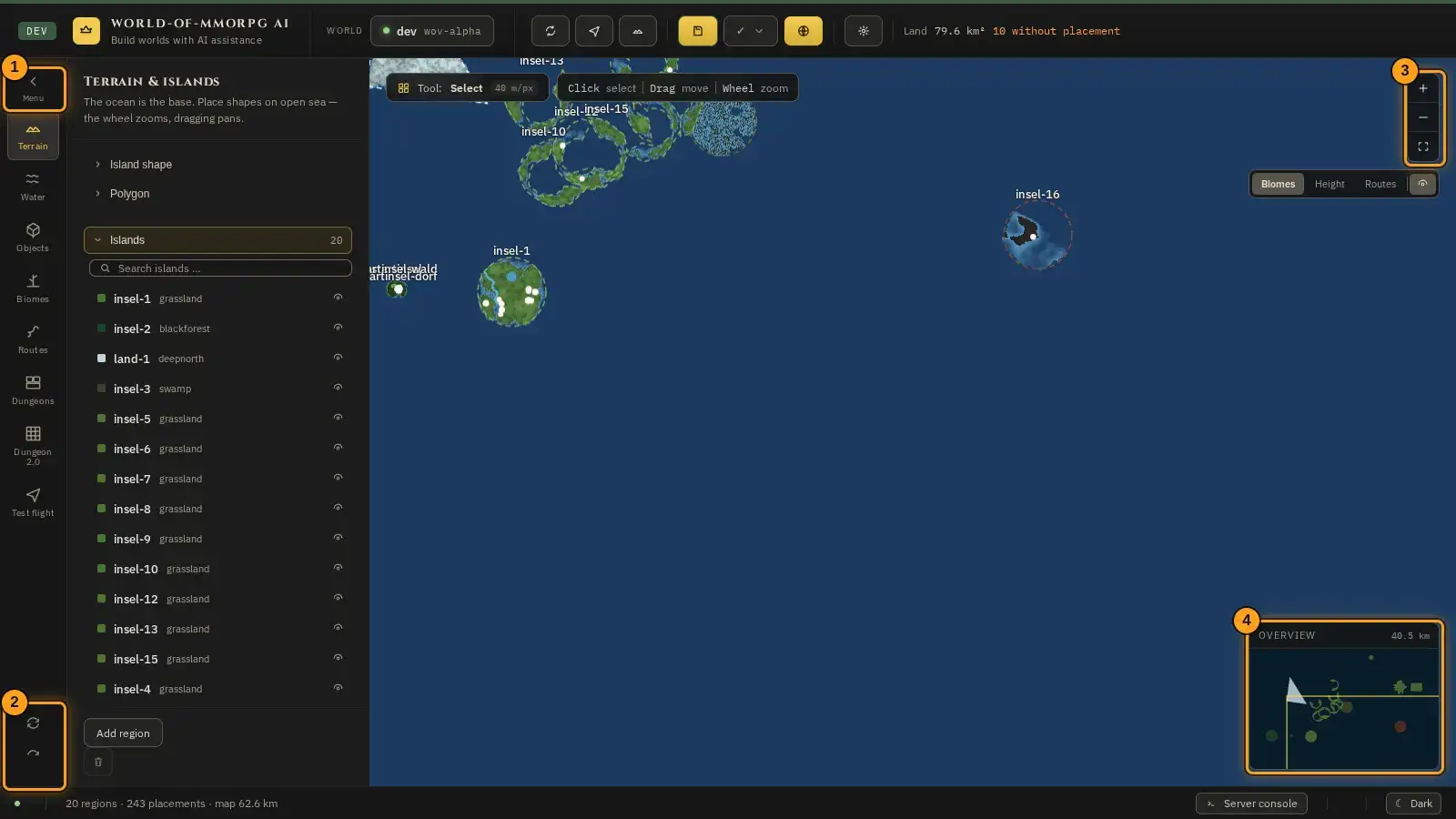
- With “Menu” (1) you collapse and expand the side bar. Collapsed, the map gets more room.
- At the bottom of the left column (2) are “undo” and “redo”. Ctrl+Z takes back the last step. The editor remembers the last fifty steps.
- At the top right of the map (3), the “+” and “−” buttons zoom in and out, and the third button fits the whole world into view. The mouse wheel does the same.
- The overview (4) at the bottom right shows the whole world. Clicking it moves the map to that spot.
- The modes on the left are buttons too: the Tab key walks through them, Enter or the space bar switches. After a mouse click the focus is back on the map, so the game keys (P, V, T, Ctrl+Z) do not stay stuck in a tile.
Tip: Ctrl+Z and Ctrl+Y (redo) work for the map and for placements. Feel free to experiment, you can almost always go back a step.
Light and dark
What for?
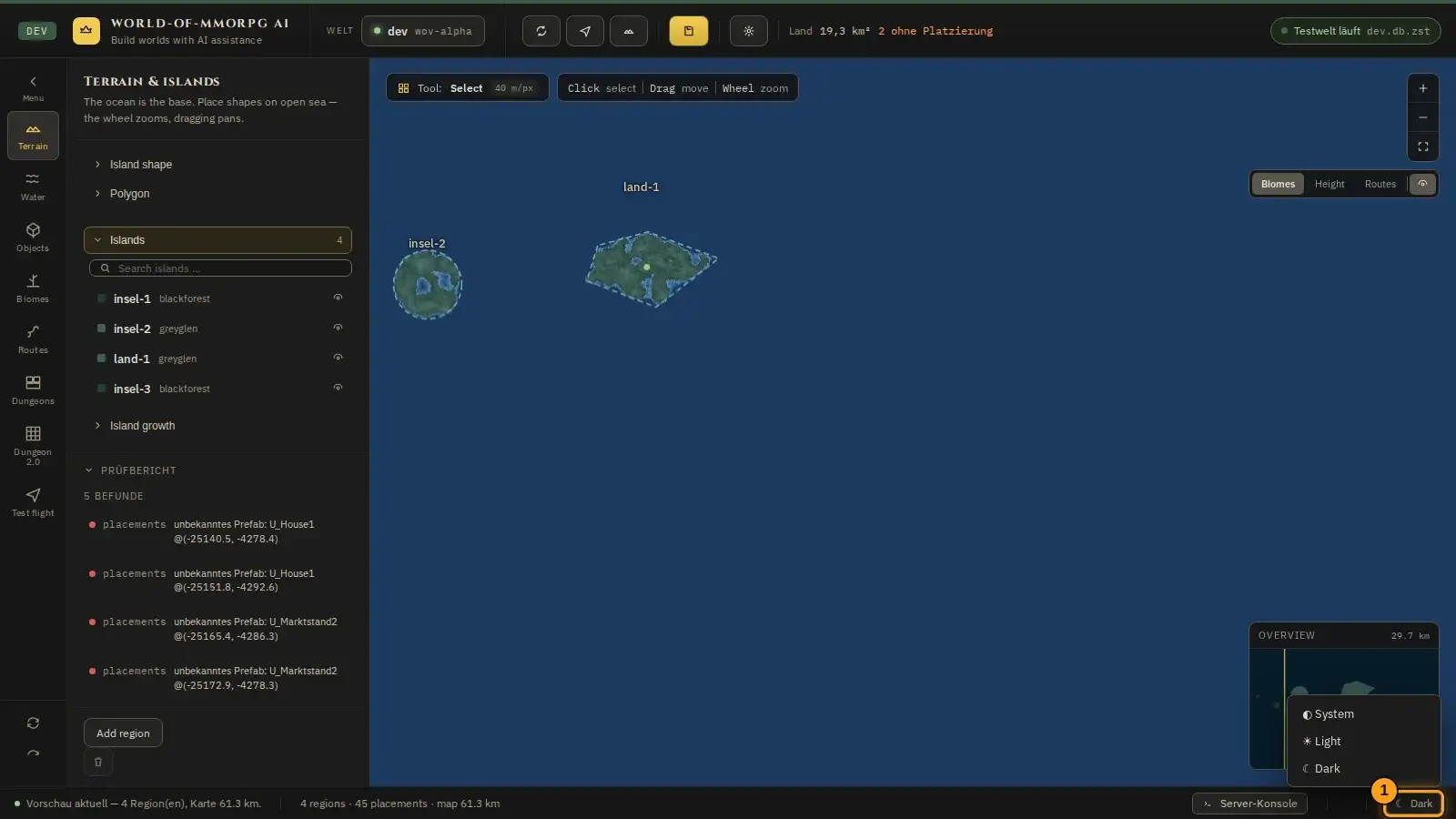
The editor can appear light or dark. Whether it follows your operating system or your own choice is up to you: bottom right in the footer. The colours come from the same template as the website; the light-mode steps are derived from it.
How it works
- On the right of the footer (1) sits the switch. It shows a symbol and the word of the mode that is currently in effect: ☀ Light or ☾ Dark.
- A click opens a menu with three entries: System, Light and Dark. “System” follows the operating system and changes with it when you set your machine to dark in the evening.
- Choose an entry with the mouse or with the arrow keys and Enter. Escape closes the menu without changing anything, and the focus returns to the button.
- Your choice applies to this browser on this device: the editor remembers it. On another machine or in another browser, “System” applies again. If a second editor window changes the mode, every open window in this browser follows at once; if you had chosen “System”, the other window’s choice applies from then on.
Tip: The accent and the base tones come from the website colour template (gold as the only colour of action, warm greys); the light-mode steps and the signal and focus colours are derived from them. The map keeps its world colours — a light ocean would no longer be a map; its labels are fixed light with a dark halo. The 3D previews, however, follow the mode: background, grid and selection change with it, the sky dome and the models‘ colours stay. The biome preview shows the world’s sky and does not follow.
Installing the game and playing without the browser bar
What for?
Installed as an app, the game starts in full screen without the address bar, has its own icon on the home screen or desktop and opens like any other app.
How it works
- Android with Chrome: after you enter the world a strip “Install the game” appears at the bottom (1). Tap “Install” (2) and confirm.
- iPhone and iPad with Safari: tap “Share” and choose “Add to Home Screen”. Safari cannot offer the installation by itself, the strip only shows the instructions.
- Chrome and Edge on a computer: click “Install” in the same strip, or open the settings, choose the tab “General” and click “Install” under “App” (picture 2).
- Start the game from the new icon afterwards. The strip no longer appears then.
- “Do not show again” (3) hides the strip for good; the settings keep offering the installation.
Tip: Firefox on a computer does not offer installation; the game runs in the normal window there.
If something does not work
- I see no strip.
- The game already runs as an app, the browser does not offer installation (Firefox on a computer, an iOS browser other than Safari), or “Do not show again” was chosen. On the iPhone use the Safari way from step 2.
- Without a network “No connection” appears.
- The game needs an internet connection. Check the network and tap “Try again”.
- I closed the browser dialog and now the button in the settings is gone.
- The button is replaced by a note: the installation was cancelled. The browser will offer it again by itself later, and the “Install” button returns then. Until then choose “Install app” in the browser menu.