
Animals and creatures
Define the movements of animals and creatures and create creatures with their values, behaviour and loot.
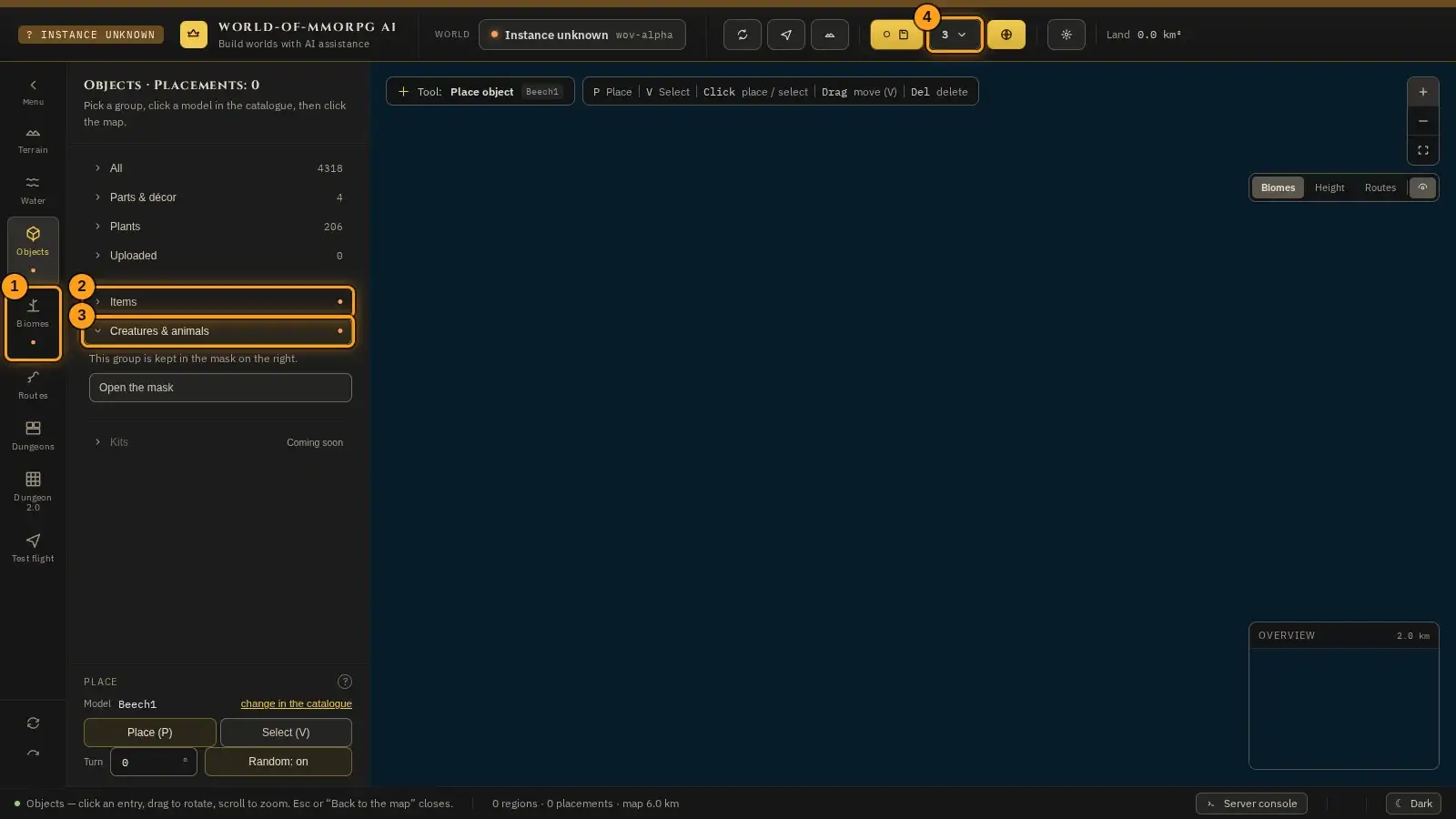
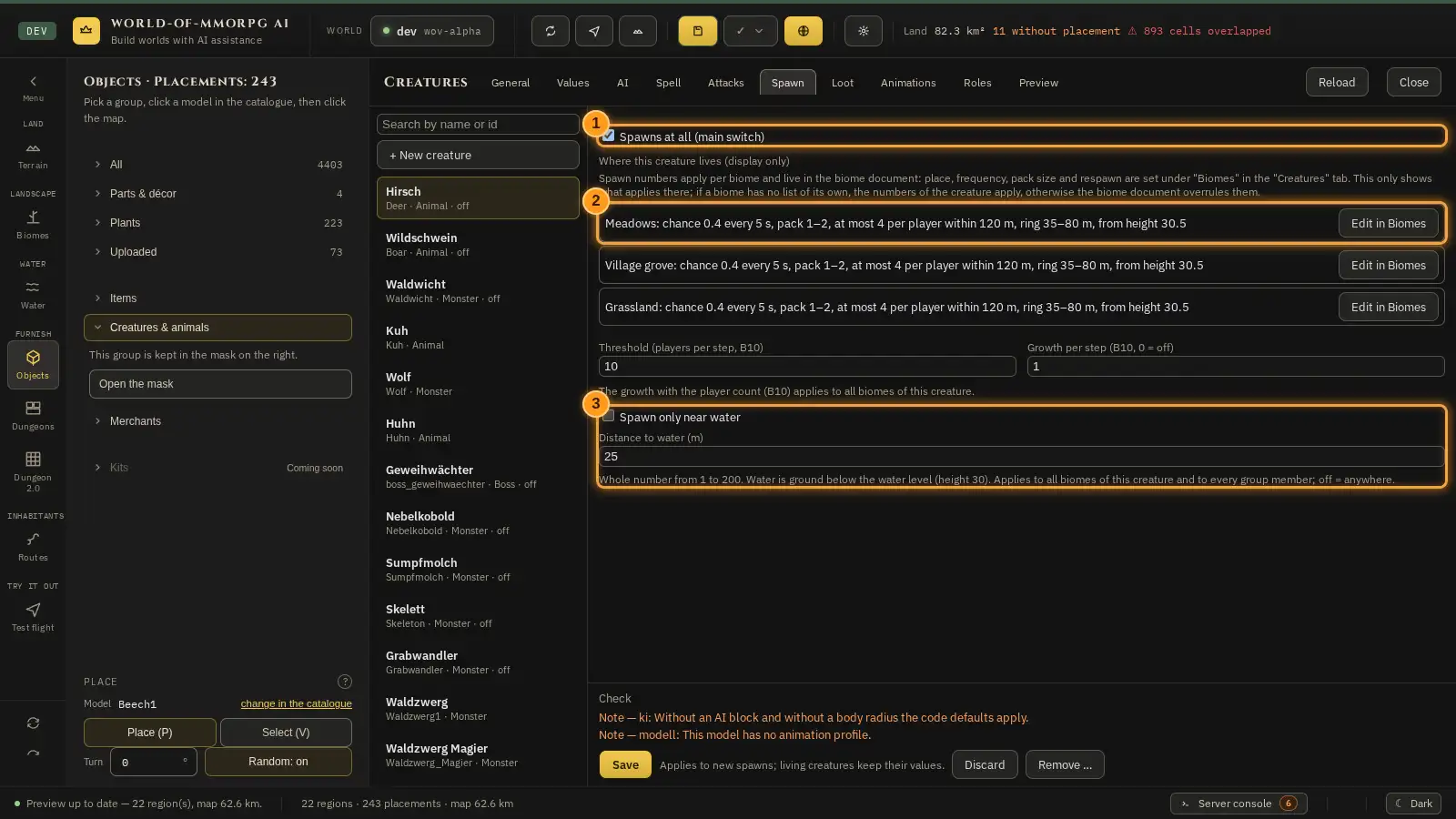
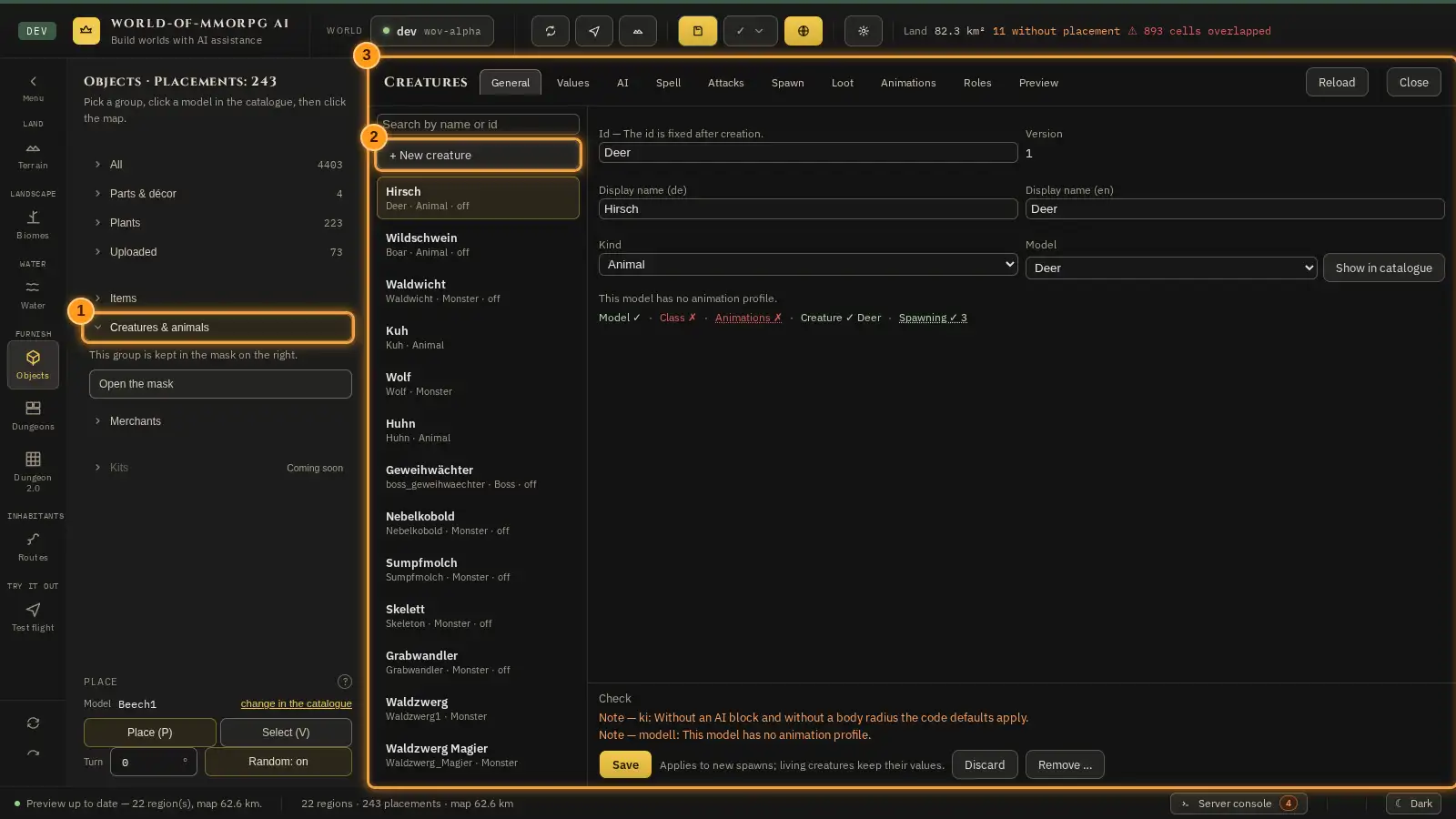
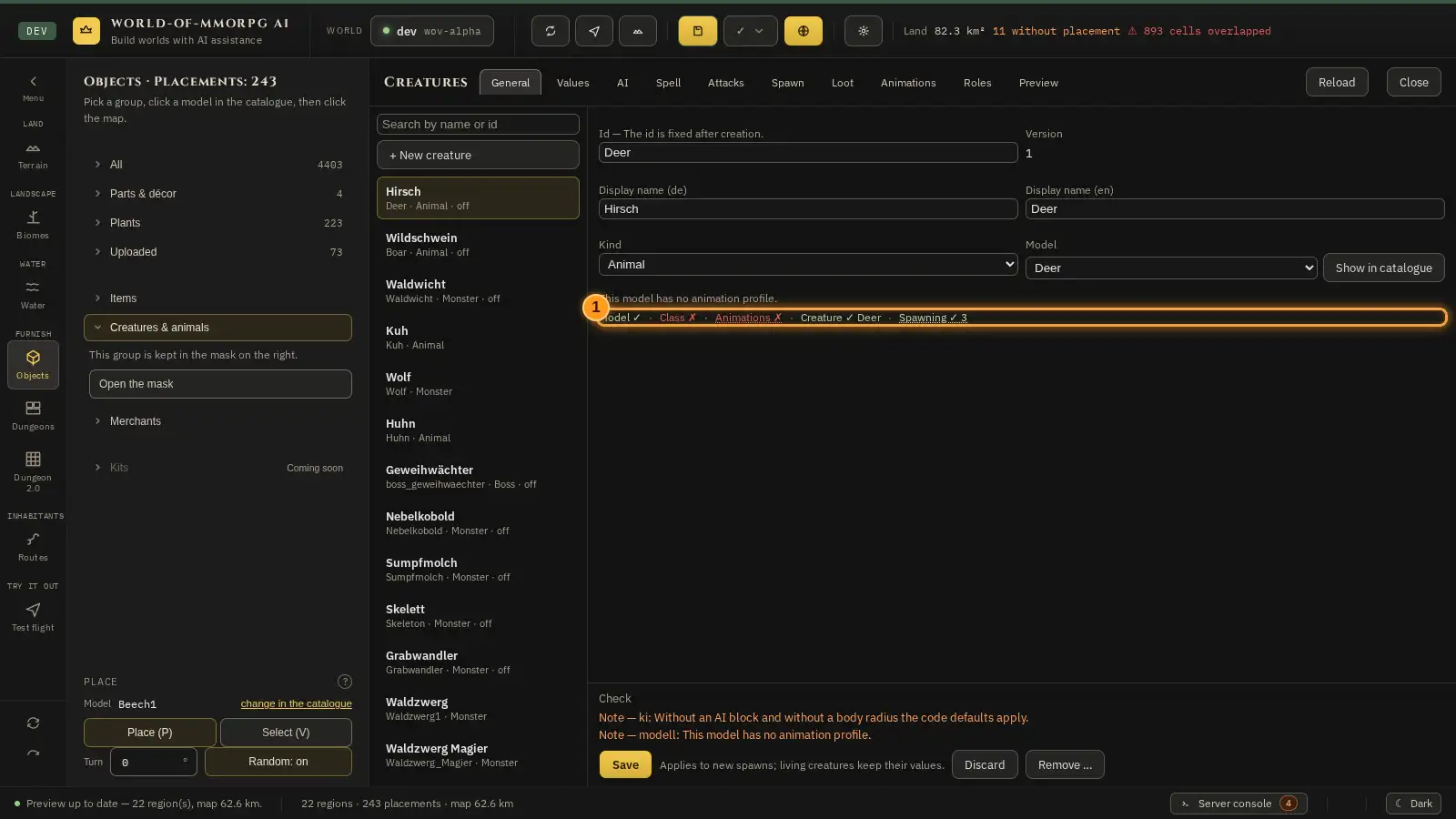
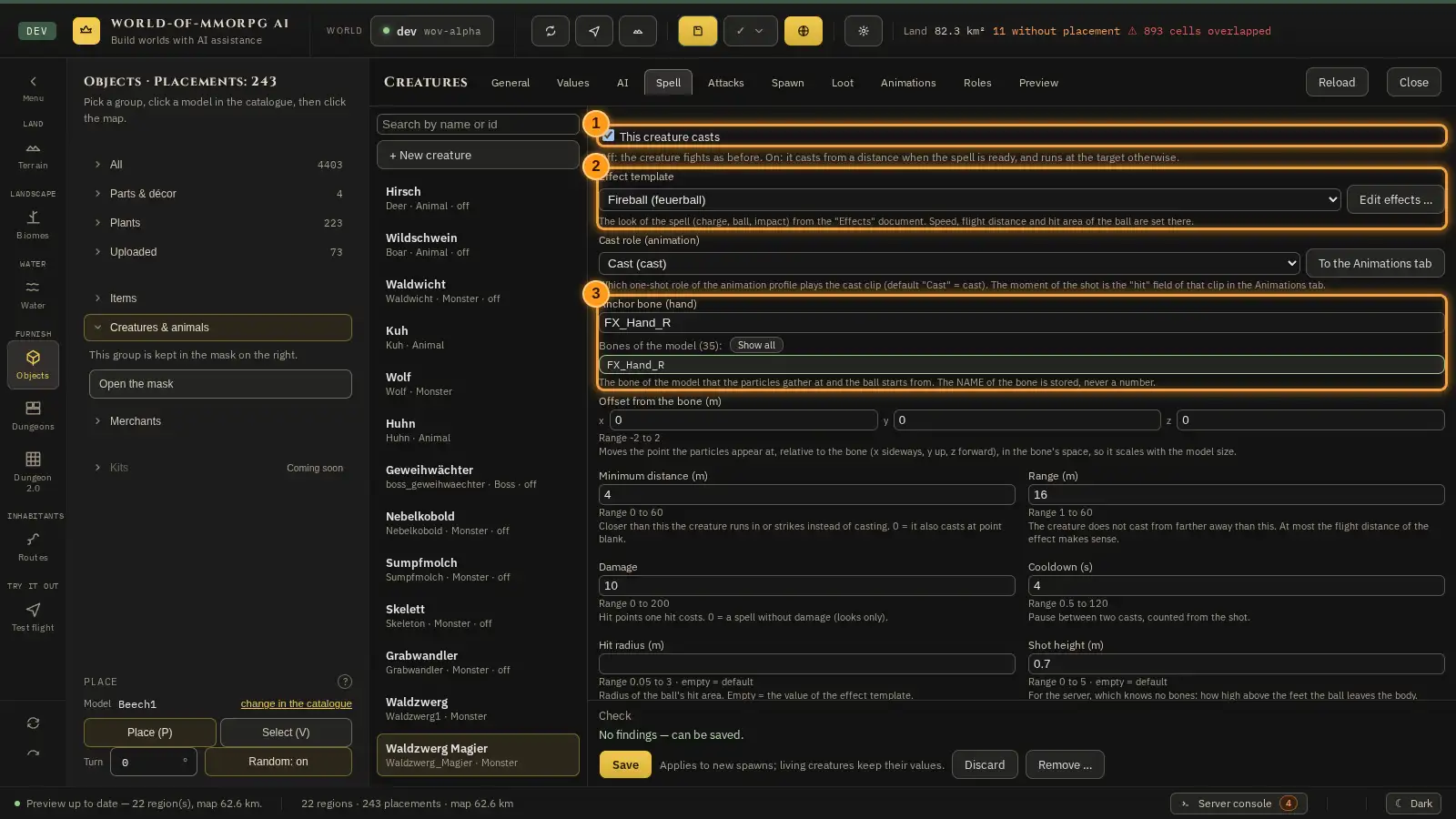
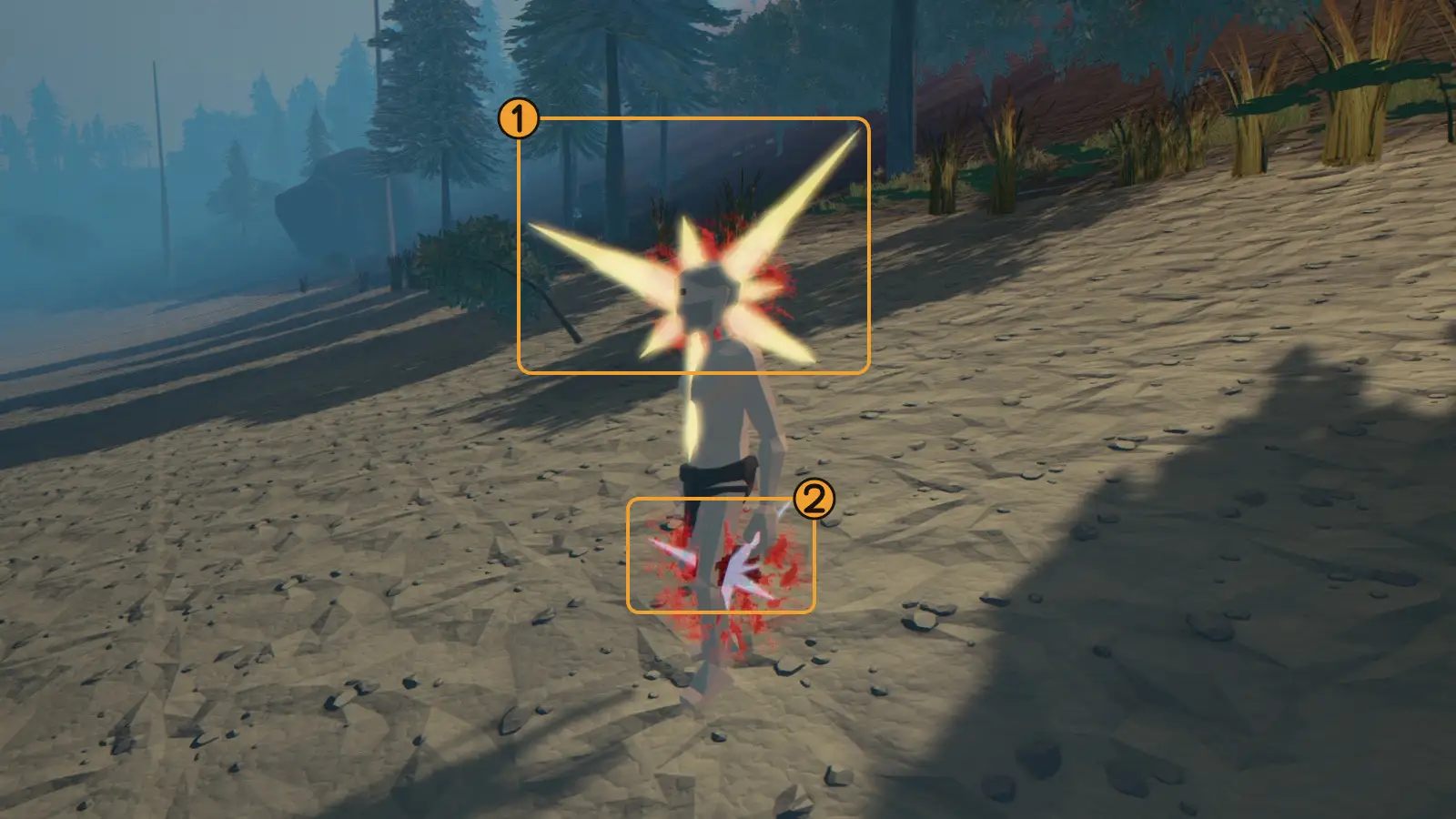
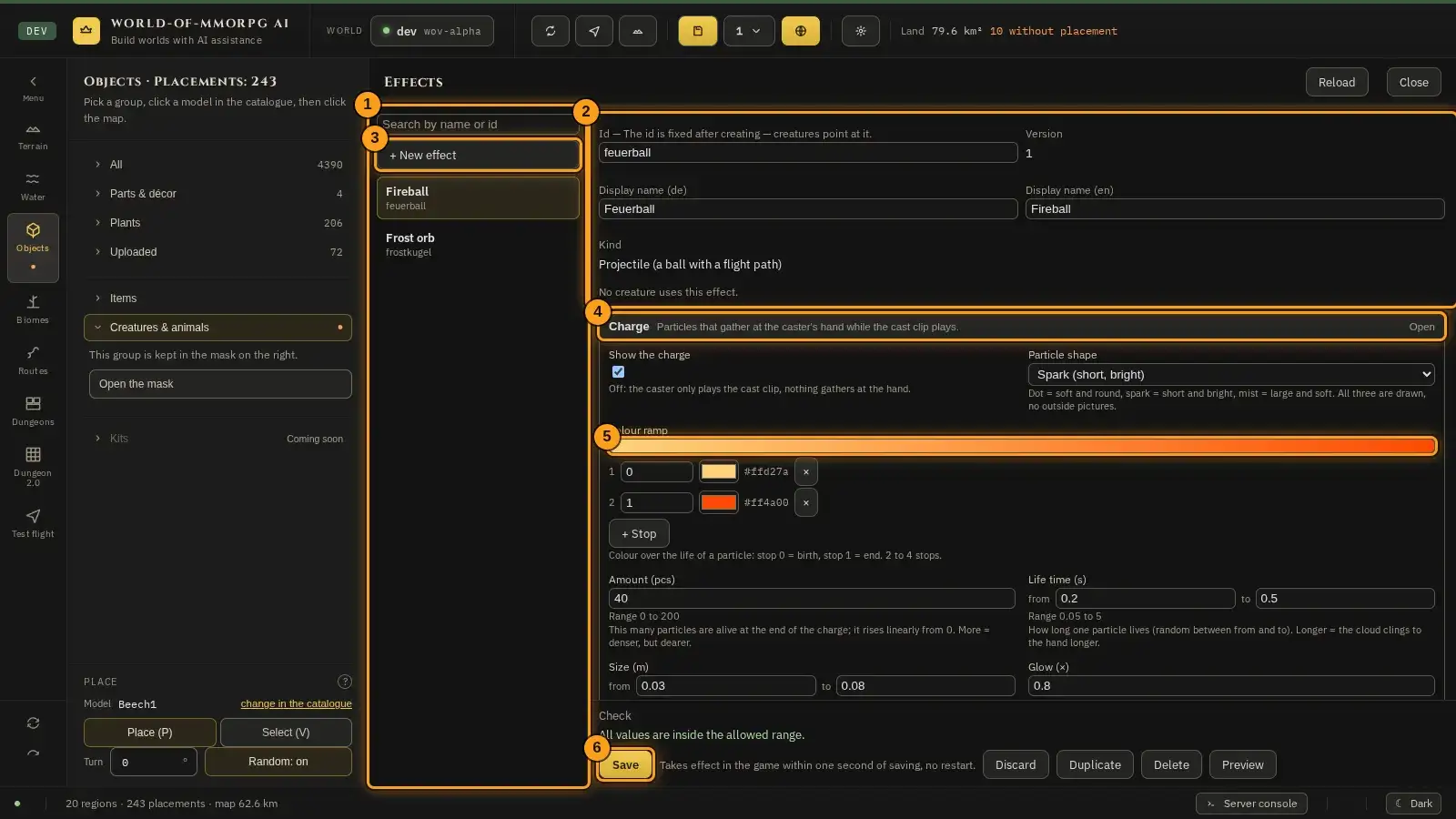
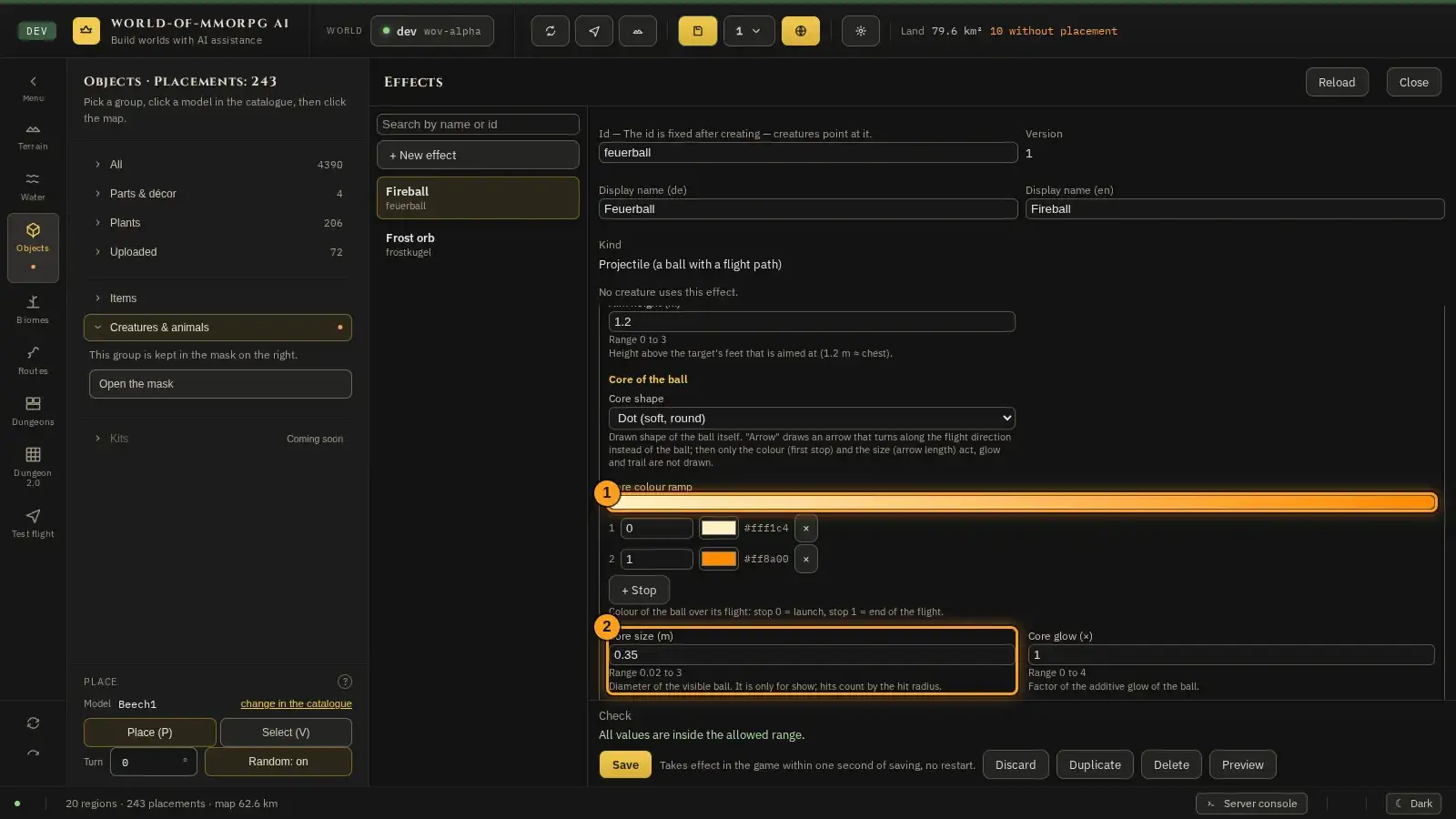
The pictures show the editor with sample data. The orange frames and numbers refer to the steps in the text.
Assigning animations to a model
In development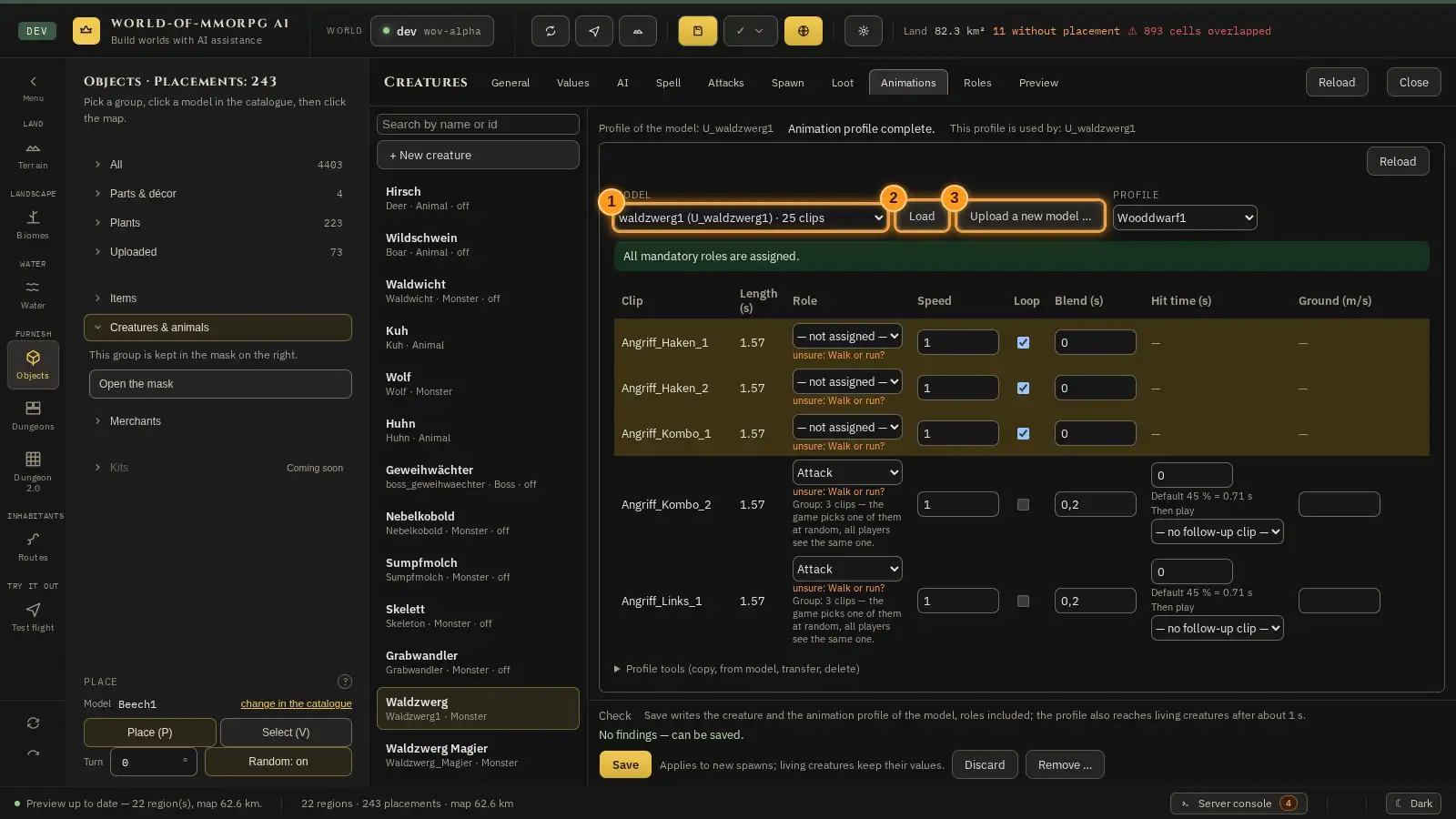
What for?
An animal model contains several movements, such as standing, walking or attacking. The game has to know which movement is for what. You set that here.
How it works
- Pick the “Objects” tile on the left, then the group “Creatures & animals”, choose a creature and open its “Animations” tab. The animation care sits embedded in that tab and fills it: the table of clips grows with the window and scrolls in its own area while the column heads stay at the top. There is no separate “Animals” tile any more. While this mask is open, no key without Ctrl, Alt or Meta triggers an editor shortcut behind it, not even with the focus on a button or on a free area: Delete, Backspace, P, V and T leave the object selected on the map alone. Esc and Tab are the exceptions: they pass through as usual.
- In the “Model” field (1) choose an uploaded model from the list. The list names the number of clips for every model; choosing one loads it at once. “Load” (2) reads the same model again — useful when the file has been uploaded anew. If no model is in the list yet, use “Upload a new model …” (3) and upload a GLB with animations under “Objects”.
- First fill in “Name (German)” and “Name (English)” — without both names the mask creates no profile. Each name may be 64 characters long at most and must not contain control characters; a model without a skeleton, a name that is too long and a full model list are reported when you create the profile, not only when you save. The fields for this are under the table in the section “Profile tools”; open it with a click (it is already open when the model has no profile yet). Then you have two ways: “New profile from this model” creates an empty profile with this model’s skeleton and links it to the model at once. Or you take an existing one as a template: choose a profile under “Copy of” and click “Create profile”.
- In the table you assign a role to every clip (for example “Walk”) and set speed, loop, blend, hit time and ground speed. “Ground (m/s)” is for the unscaled clip. For a creature with a size other than 1 the speed grows with the scale (model size times size factor), so the playback rate stays the same; you do not have to convert the value. Only when the speed reaches its cap of 12 m/s does the rate drop. The button “Use clip duration” stands in the “Length (s)” column on every row whose stored duration no longer matches the model file — on a row without a role too. It never adopts by itself: only the click writes the duration into the profile, then you save. If the duration is unknown or longer than 300 s the button stays locked and names the reason in its tooltip. A row without a role and without a stored duration does not show it at all. When you change the role of a row, the “Loop” switch restores the default of the new role as long as you have not touched it in that row yourself: state roles (stand, walk, run …) loop, one-shot roles (die, attack, hit …) always play exactly once. A value you set yourself is not changed by a role change. Opening an old profile changes nothing by itself; only the warning box tells you what does not fit.
- Next to the field “Ground (m/s)” every running row — walk, run, swim and state roles that fall back to them; one-shot roles such as attack have no button — carries the button “measure from the clip”. It reads the foot motion of the clip from the model file and shows the suggestion below the field: the speed in m/s, the number of ground contacts, the spread, the foot bones found and, when the number comes from the motion of the root, the addition “from the root track (root motion)”. It is never adopted by itself: only “use it” writes the number, rounded to two decimals, into the row, and it is saved with “Save”; “discard” clears the suggestion and leaves the value untouched. The clip needs at least two ground contacts, and the speed must not vary too much from step to step (limit 25 %). Otherwise it says “cannot be determined” with the reason — “No foot bones were found.”, “The feet do not move in this clip.”, “There are fewer than two ground contacts.”, “The stride lengths vary too much.”, “The analysis took too long …” or “The file could not be read.” — and “use it” stays locked; then check the clip or enter the value by hand. The analysis stops after one second and examines at most 64 joints and 4096 sampling points. Very short stance phases underestimate the speed: check the value in the preview window with “Move ground”. If the operations service does not answer, the mask reports “The analysis is not reachable …”.
- The field “Hit time (s)” holds the moment at which damage and blood effect reach the target. If the profile carries no value of its own and a clip duration is stored, the default of 45 % of the clip duration applies. It then stands as a grey line below the field (“Default 45 % = … s”) and is updated at once on every change; the field itself keeps showing 0. An entered 0 means “no value”, not “at once”. So an empty field or a 0 means the default (without a stored clip duration the blow counts at once); “immediately at the clip start” can only be set with a small positive value, for example 0.01 s. The server, however, checks blows about thirty times a second (one tick every 0.033 s), so the damage lands up to about 0.03 s later than entered. The hit time cannot be set more finely than one tick. Below the field “Then play” picks another clip of the file that plays right after this one-shot clip (bow: the release after the pull back); damage and shot still count at the hit time of this first clip, and the creature stands for both clips. “Then play” extends the time the creature stands still during an attack; clip and follow-up clip together may last at most 5 s, below the field the mask shows the resulting standing time, and a longer follow-up clip is shortened when you save. With “— no follow-up clip —” only the clip itself plays.
- If a clip belongs to the role “Cast”, its “Hit time (s)” is the moment of the shot: until then the particles of the charge gather at the hand, at that time after the clip start the ball flies off. If it holds 0 or nothing, the default of 45 % of the clip duration applies, as for every clip. Several clips on the role are variants, each with its own hit time, and the creature stands still while the clip plays. The server counts the shot like every blow, about thirty times a second.
- Several clips on the same role form a group: put two or more rows of the table on the same role, and the role shows the note “Group: … clips — the game picks one of them at random, all players see the same one.” The game draws again as soon as the creature changes into that role, and at every one-shot event (a blow, a hit, a death); the server makes the choice so that all players see the same clip. Every clip of the group carries its own hit time. If a role carries only one clip, that clip always plays. The order of the group is the order of the rows.
- For the aggro animation you assign the role “Aggro” to a clip. From the sight range on, the creature then turns towards the player and plays that clip. It stays in this state for the time set under “bemerktSec” in the “AI” tab (default 0.75 seconds) and as long as the target stands between “anrennenAb” and the sight range; then it charges. Without an assigned clip it stands still during that time, in the idle pose.
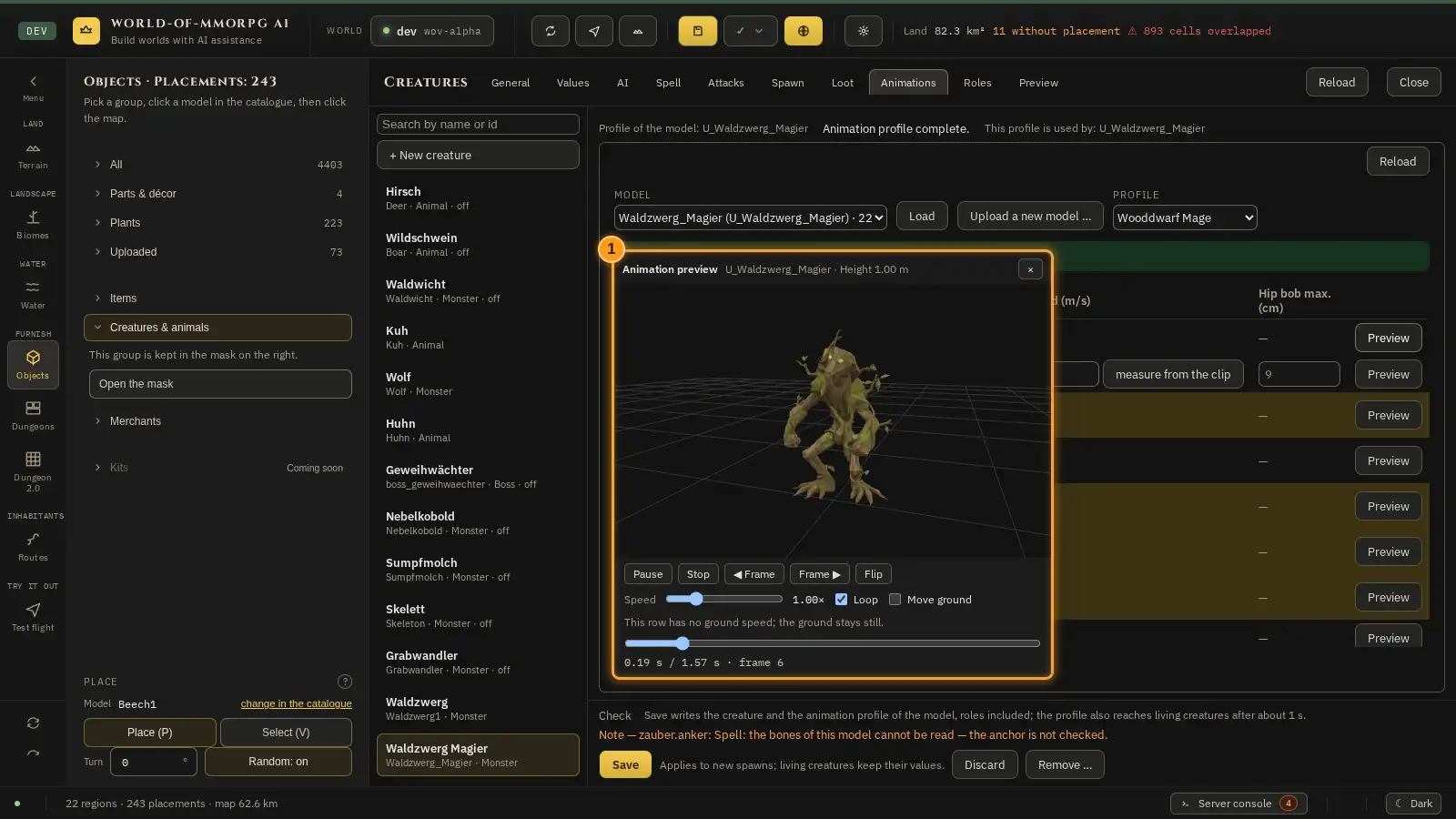
- In every row of the table “Preview” opens a small 3D window (“Animation preview”) with the chosen model. It plays the clip of the row with the speed and loop set in that row; a click on “Preview” in another row plays that one. You move the window by its title and close it with “Close”; you turn the camera with the mouse and zoom with the wheel. At the top stands the height of the model. Under the stage you find “Play” and “Pause”, “Stop” (back to the start), “◀ Frame” and “Frame ▶” (one step is 1/30 second, the window pauses first), “Flip” (turns the model by 180° if the preview guessed its front wrong), “Speed” (0.1 to 4; it counts only in the preview, the row stays unchanged) and “Loop”. With “Move ground” a ground runs under the model at the ground speed of the row times the speed: if the feet stay planted, the value fits; if they slide, change “Ground (m/s)” in the row and click “Preview” again. If the row has no value, a note says so and the ground stands still. The time line shows seconds and frame number and can be dragged; the orange line marks the hit time (only on clips that can hit) the way the game counts it. Attack, hit and death clips always play at speed 1 and without a loop in the game: the preview starts them that way, shows “In the game this clip always plays at speed 1.” next to the control, and the line stays at the game value even if you move the control. Only running clips play at the speed of the row in the game. If the role has several clips (a group), you choose the clip in the list “Clip”. If the clip is missing from the model, the model or WebGL is missing, the window names the reason. The mask never saves anything from the preview; changes to a row count for the preview from the next click on “Preview”. If you close the mask, the window closes too.
- The column “Hip bob max. (cm)” appears on every row with a walk or run role (like “Ground (m/s)”). It sets how far the animal’s hip may move up and down while it runs at most. If the clip swings further, the game damps it to this value on playback: the mean height stays, only the up and down gets smaller, and an animal with a frantic run clip no longer hops. An empty field means the default (9 cm, the same as the player figure; the grey number in the field), a 0 switches the damping off for this clip, 0 to 100 is allowed. The field only works on a clip whose row also has “Ground (m/s)” set; without a ground value the clip stays unchanged (the mask points this out next to the field). A negative value counts as empty, i.e. the default. A clip whose hip already bobs less stays unchanged. The damping works in the game and in the test flight, not in the mask preview. Animals and creatures with a profile now move with their clips only; the old built-in hopping gait applies to models without a profile only.
- If the row of a creature with a spell is assigned the role “Cast” (cast), the preview window shows the whole spell for the “Preview” button (1): the charge at the creature’s hand up to the red mark on the time line, which is the shot (the hit time), then the ball that flies to a grey cone 8 m in front of the model, and the impact. “Flip” turns the cone with the model. A row with another role, or a model without a spell, shows only the clip. In the game the “Combat particles” setting also applies to spells: when it is off, the charge, the trail and the impact particles are left out and the ball keeps flying as a plain glowing dot. Beyond 60 m there is no charge, beyond 100 m no trail, from 30 m on there are half as many particles; at most 24 spell systems run at once, and then the oldest spells lose their trail first, then their charge (the ball and the impact stay). A hit counts where the server sees the player at that moment, with no compensation for lag: with a high latency a ball can hit a player who has already dodged it on their own screen.
- Above the table coloured boxes warn: missing mandatory roles, “Without ground speed the feet slide”, “Idle does not loop” or a death clip with a loop. The death-clip warning names the correction: the clip is saved without a loop the next time you save. For “Idle does not loop” the mask changes nothing by itself; you switch the loop on. Below the table, in a fixed line, it says which models use this profile.
- “Transfer to model” links the profile to the loaded model, “Delete profile” takes it away again — as long as no model uses it. The “Roles” tab of the creature mask, right next to “Animations”, manages the roles themselves.
- There is only one Save button, at the bottom of the mask: it saves the creature and the animation profile of the model, roles included (the sentence beside it says so). The creature values affect new spawns; the profile, on the other hand, also reaches living creatures about 1 second after saving. If you changed something in the profile, “● Animation profile not saved” appears next to it, and the button is free even when you changed nothing in the creature itself. “Close” at the top right, Esc and switching masks keep the animation draft without asking; reopening shows it again. A dot on the “Animations” menu entry, on “Creatures” and on the “Objects” tile marks the unsaved animation draft. “Save all” writes it even while the mask is closed. “Discard” at the top of the animation mask resets only its draft after one confirmation; “Cancel” keeps it. If mandatory roles are missing, the form asks “Save anyway”.
- At the top right of the mask there is a “Reload” button. It fetches the roles and profiles from the server. If you changed nothing, the mask takes the server state at once and builds the table of the chosen model again; the message reads “Reloaded.” If you did change something (a role or a table row), your draft is never overwritten silently: if the server has not changed since your state, the draft stays and the message says so; if something changed there, a yellow block appears above the tabs (see step 17). This also holds in the “Animations” tab of the creature mask.
- The yellow block “The server state changed” lists what somebody else changed on the server since your state: roles and profiles (changed, new, deleted), the model → profile assignment, and the order of the roles or profiles when somebody only re-ordered them (“Order of the roles changed”); a pure re-ordering counts too, because your save would otherwise write the old order back. If an id appears in the line “Changed by you and on the server”, you touched the same entry too; your version would then win. Your draft stays until you choose, and “Save” waits meanwhile. “Keep mine (overwrites the server state)” takes the server state as the new basis; the next save writes your whole draft over the server state, including the foreign changes in the list. “Take server state” discards your draft and shows the server state. The same choice appears when “Save” is turned away with 412; the former yes/no question “Reload?” is gone. If you then take all your changes back by hand until your draft equals the state before your input, the block goes away by itself: there is nothing left to protect, the mask takes the server state (“You took your changes back; the server state is taken.”), and “Keep mine” is no longer offered, because without a draft there is nothing of yours. A late answer to “Reload” is dropped when a successful save or a newer “Reload” came in between; it brings back neither the old state nor a wrong message. If you choose in the block while an answer is still pending, it is read anyway and shows a new block if the server changed again. Taking changes back only takes effect once you leave the field; while you are still typing, the field and the block stay.
If something does not work
- Saving says “Not saved: the server state changed”.
- Somebody else saved roles or profiles since you loaded them. Your draft is still there. Read in the yellow block what changed and choose “Keep mine (overwrites the server state)” or “Take server state”. Only then does “Save” work again; after “Keep mine” it goes through without another rejection.
- The “Animations” tab is missing on a model and “Document unreadable” stands there instead.
- The document of roles and profiles on the server cannot be read, so the catalogue cannot check whether the model has a profile. The hint shows only on a model without clips that is not a creature and that the unreadable document names in its model assignments, and on every such model when the file is no readable JSON at all; a tree or any other model without a profile in the readable part shows nothing. Reload the page; if the hint stays, report the file to operations. Your state in the animation mask does not change because of this.
Roles: standing, walking, attacking
In development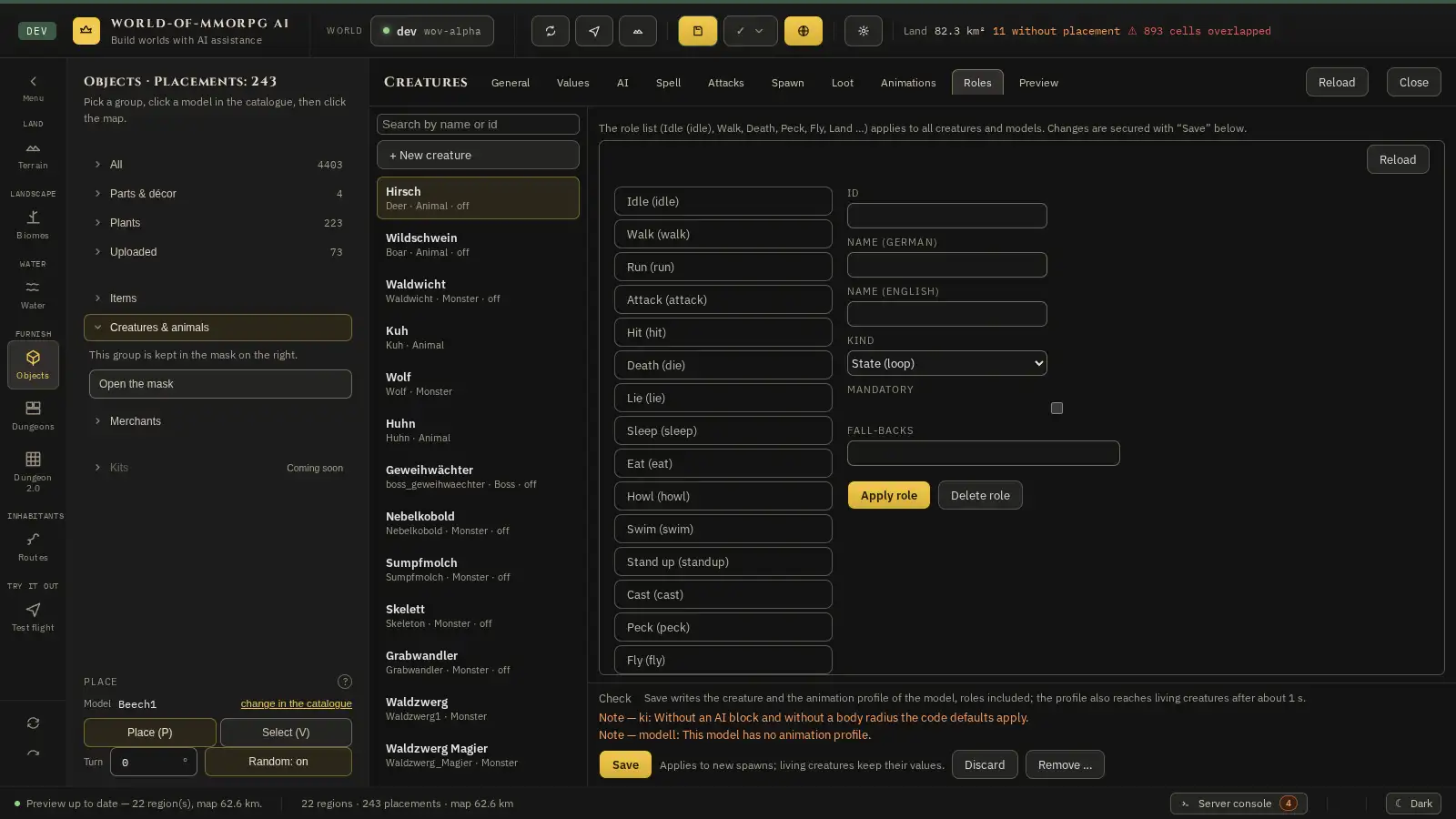
What for?
A role is a purpose, for example “walking”. You tell the game which clip of the model plays that role. That is how a creature can walk, attack or die.
How it works
- In the creature mask open the “Animations” tab and then switch to the “Roles” tab right next to it: the list of roles fills the tab, there is no dialog any more. Switching between “Animations” and “Roles” keeps your unsaved changes. The list of roles applies to all creatures.
- On the left is the list of roles: Idle, Walk, Run, Attack, Hit, Death, Lie, Sleep, Eat, Howl, Swim, Stand up, Aggro, Cast, Peck, Fly and Land.
- Click a role. On the right you see the ID, names in German and English and the kind: “State (loop)” repeats, “One-shot” plays once.
- The “Mandatory” tick box marks a role as mandatory. Under “Fall-backs” you enter substitute roles.
- “Add role” creates a new role, “Apply role” saves changes, “Delete role” removes it.
- The list also carries the role “Aggro”. It is a state role and falls back to “Idle” without a clip of its own: it plays exactly while the creature has noticed the target, stands and turns towards it. Its fall-back chain must not be empty; when you save it that way, the mask says that “Aggro” needs at least one fall-back, for example “Idle”. Like any ordinary role you may rename or delete it.
- A role you invented yourself can be a group too, that is carry several clips. If no clip carries the role, the game falls back along the fall-backs of the role, in the end to “Idle”.
- There are three fixed roles for ground birds, none of them mandatory: “Peck” (state, falls back to “Eat”, then “Idle”), “Fly” (state, falls back to “Run”, “Walk”, “Idle”) and “Land” (one-shot role, falls back to “Idle”). A model without these clips simply plays the fall-back; the behaviour that uses them, such as pecking while resting, follows in a later step.
- The role “Cast” (cast) is a one-shot role without a fall-back and one of the fixed roles that you cannot delete. It plays the cast clip of a creature with a spell; if you assign no clip to it in the profile, the creature does not cast, and the creature mask reports that in red. A role list that existed before this role gets it added once when the animation upkeep is opened for the first time; your other roles stay unchanged.
If something does not work
- The crow walks, pecks and flies up when I come close. Is that a bug?
- No, that is how the crow is made: it is a ground bird. It walks and pecks on the ground, flies up when someone comes close and lands again somewhere else later. It lives in the grassland, a few per player, and faces its direction of travel when walking and flying. Whether it can be hunted is set per species in the field “huntable” (“jagbar”) of the creatures mask.
Creating and setting up creatures
What for?
A creature is an animal or being with its own values: how many lives does it have, how fast does it run, where does it appear and what does it drop?
How it works
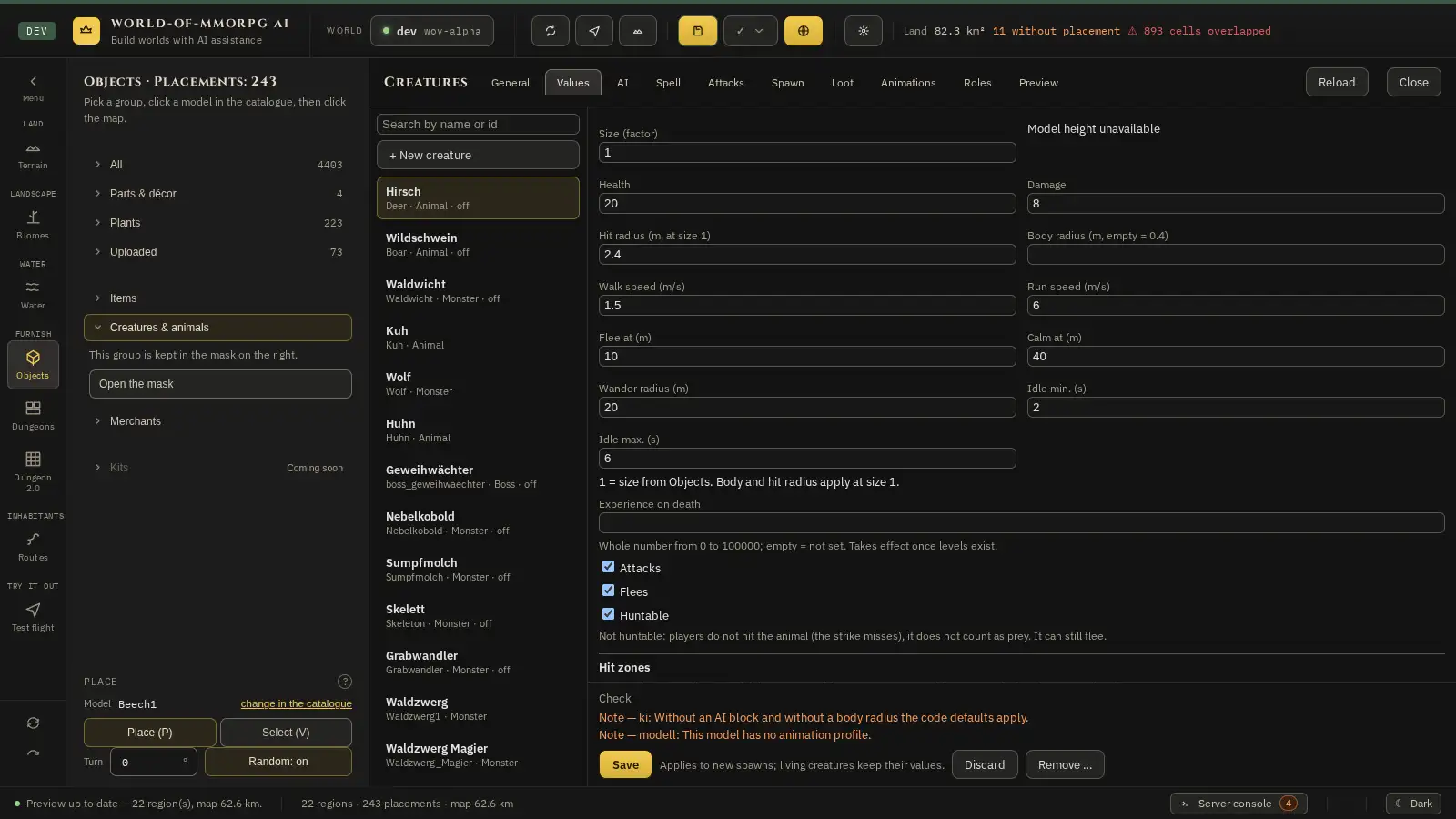
- Choose the “Objects” tile on the left, then the group “Creatures & animals”. The mask opens over the map. On the left stands the list with a search field, for example deer, wolf or skeleton. While this mask is open, no key without Ctrl, Alt or Meta triggers an editor shortcut behind it, not even with the focus on a button or on a free area: Delete, Backspace, P, V and T leave the object selected on the map alone. Esc and Tab are the exceptions: Esc closes the mask, Tab moves the focus.
- With “+ New creature” the panel “Create a new creature” opens. First you pick a model in the field “Uploaded model (only without a creature)” — every uploaded model carries at most one creature; if no free model is left, it says “No free model — every uploaded model already has a creature.” with the button for uploading. With “Start values like …” you take over the start values of an existing creature. The id is optional: if you leave it empty, the mask derives it from the model (U_waldzwerg1 becomes Waldzwerg1); once created it is fixed. “Create” saves nothing yet: the creature stays a draft in the form until you click “Save”. There you set, in the “General” tab, the “Display name (de)” and the “Display name (en)”, the kind (animal, monster or boss) and the values. Changing the kind of a creature that is still inactive takes effect right after saving; the server does not need a restart.
- The “Values” tab follows “General”. At the very top stands “Size (factor)” (0.1 to 10): a factor of 1 means the model keeps its size from the objects; The size does not only change the looks: the size of the model from the objects times “Size (factor)” also scales the body radius (hit area and collision, at most 10 m), the AI values “angriffReichweite”, “sicht”, “haltSicht” and “anrennenAb” and the walking and running speed (each up to the upper limit of its field). A creature twice as big therefore sees twice as far, strikes twice as far and runs twice as fast. The numbers in the “Values” and “AI” tabs stay your unscaled values; the game applies the factor only when it plays. If you change the size while the server is running, living creatures take on body, reach and speed at once; they do not have to respawn. If the creature has a spell, its range grows with the size too (the cooldown does not). “leine” (the return radius) and the other world measures such as “hoeren” and “verfolgungM” are not scaled. Next to it the editor computes the height and writes “Calculated height: … m”. There it says “Model height unavailable” when no height is known for the model — that holds for every model that is not uploaded, such as deer or wolf — and also when the factor lies outside 0.1 to 10. Below it the grid holds “Health” (1 to 5000), “Damage” (0 to 200), “Hit radius (m, at size 1)” (it applies to the unstretched creature), “Body radius (m, empty = 0.4)”, “Walk speed (m/s)” and “Run speed (m/s)” (0 to 12), “Flee at (m)” and “Calm at (m)” (0 to 200: the distance from which the creature flees and the one from which it calms down), “Wander radius (m)” (how far it moves away from its spawn point) and “Idle min. (s)” and “Idle max. (s)” (the rest between two wander targets; “min.” must not lie above “max.”). Under the grid stands the note “1 = size from Objects. Body and hit radius apply at size 1.” Below it stands the field “Experience on death”: the experience the creature is to give when it dies, a whole number from 0 to 100000. Empty means “not set”; the field is then not saved. The note under the field says how far it reaches today: it takes effect once levels exist. So far the server knows neither experience nor levels — the value is saved, shown and edited, but changes nothing in the game yet. You may group the digits in thousands, in both languages: “100.000”, “100,000” or “100 000” all mean 100000 (groups of exactly three digits after a point, comma, blank or apostrophe). Any other number with a point or comma, such as 1.5, 12.34 or 1.00, and any value outside 0 to 100000 shows as an error in the check; nothing is rounded. Two tick boxes close the tab: “Attacks” and “Flees”.
- In the “AI” tab you set the behaviour (see below), in the “Loot” tab what the creature drops: for every row you pick the “Item” from the item document and enter three numbers behind it — Min, Max (whole numbers from 0 to 99) and Chance (0 to 1); “+ Row” adds a row, “×” removes it, and the tick box “Extra loot (second drop)” adds a second item with a fixed amount. The “Spawn” tab mainly shows where the creature lives (the only inputs here are “Threshold”, “Growth” and the water proximity): the main switch (1) takes it out of spawning, and below it stands one read-only line (2) per biome with frequency, pack and respawn beat plus the button “Edit in Biomes”. Spawn numbers apply per biome and live in the biome document: they are changed only in the biome form, on the “Creatures” tab; where a biome has no list of its own, the numbers of the creature apply, otherwise the biome document overrules them. If the two documents differ, a block in the warning colour stands under the lines: its heading names the number of differences, and every difference gets a line of its own; where a number differs, the field and both values stand with it. The block covers six cases: if the biome document holds a different number than the creature document, the value of the biome document applies. If the biome is missing in the biome document, the numbers of the creature apply. If the biome document has no row for the creature although the creature document names this biome, the creature does not spawn there. If a row of the biome document names a creature that does not exist in the creature document, the row has no effect and nothing spawns there. If the creature has no spawn block or does not name the biome of the row, the row of the biome document applies all the same and the creature does spawn there. The block applies only while the main switch is on: if it is off (or the creature is not active), the creature spawns nowhere and the block is left out. If no biome lists the creature, the separate warning line above the rows says that it spawns nowhere — it is not part of the block. Two numbers belong to the creature itself: “Threshold (players per step, B10)” and “Growth per step (B10, 0 = off)” let the cap grow with the number of players; they apply to all biomes of the creature. Below them stands the tick box “Spawn only near water” with the field “Distance to water (m)”: when it is on, the creature appears only where water lies within that distance. Water is ground below the water level (height 30); the distance counts from every spawn point, so for the anchor point and for each member of a group on its own, and for all biomes of the creature at once. Whole numbers from 1 to 200 metres are allowed; the field is greyed out while the tick box is off and keeps its number. With the tick box off the creature spawns anywhere, as before. The check samples the ground in 16 directions at steps of at most 4 metres. Between two directions a gap remains that grows with the distance (about 0.4 times the distance, around 10 m at 25 m, around 78 m at 200 m): a body of water that lies entirely inside that gap is overlooked, so at a large distance even a larger lake can be missed. The creature is then rather held back there, but it never appears at a spot without water within the distance. The condition only affects the random spawning of the table: the admin command to spawn, bosses, dungeons and creatures that already live are not affected. The tick box stands in the “Spawn” tab below the lines and works in addition to all conditions of the biome rows. It appears only when the creature has a spawn block; if it has none (it then spawns only through the rows of a biome), switch the main switch once, which creates the block.
- Below the loot rows the “Loot” tab holds the block “Loot tables (“exactly one of the group”)”. The loot rows are tried in order, and the first row whose chance succeeds wins: at most one item drops from all rows together. A loot table, by contrast, is a group of items of which at most one drops: with the “Chance of the table” (0 to 1) exactly one item of the group drops, otherwise nothing drops from this table. Which item it is depends on the weight: the share of an entry is its weight divided by the sum of all weights of the table, and the amount is spread evenly between Min and Max (whole numbers from 0 to 99). “+ Table” adds a table, “+ Entry” an entry in it: you pick the “Item” from the item document and enter the weight (above 0, at most 100000; only the ratio counts), Min and Max. To the right of every entry the “Share” is shown in percent, in brackets the probability per kill (chance of the table times share). Example: a table with the chance 0.3 and the entries deer hide (weight 3) and antler (weight 1) drops nothing in 70 % of the kills, a deer hide in 22.5 % and an antler in 7.5 %, never both. A creature has up to 8 tables with up to 40 entries each; every table rolls in addition, independently of the other tables and of the loot rows (so a creature can drop one row piece and several table pieces), and the loot lies on the ground as usual. Gold that should drop independently per table goes into its own table with a single entry (chance e.g. 0.55, amount Min to Max); the loot rows are only meant for “first successful row wins”. Example: two tables with 55 % gold each give gold in about 80 % of the kills (1 − 0.45 × 0.45), and in about 30 % even twice. The item of an entry counts as “in use”: it cannot be deleted in the item document while a table names it. The check reports in red: a table without an entry, a weight of 0 or below, Min above Max, an item that does not exist and more tables or entries than allowed. Important for the rollout: a server without this feature refuses a creature document with loot tables as a whole; save tables only once the server runs the new version.
- The “AI” tab begins with the tick box “Has a state machine (AI block)”. Without it the defaults from the code apply. With it 16 fields and the tick box “Circle” appear; all lengths are metres, all times seconds. The creature then runs through fixed phases: wander, notice, charge, fight, withdraw and return home. A note under the numbers reminds you: from “sicht” (sight range) on, the creature turns towards the player and plays the role “Aggro”. It holds that state for “bemerktSec” (default 0.75 s) and as long as the target stands between “anrennenAb” and “sicht”; then it charges, and from “angriffReichweite” it strikes. If the model has no Aggro clip assigned, it stands still during that time. The sight range is therefore the aggro range as well. A new creature without an AI block takes the default; if you switch the block on, you enter “bemerktSec” yourself (0 means: no visible aggro picture).
- The fields for perception and pursuit in the “AI” tab: “sicht” (1 to 100 m) is the sight range inside the cone of sight, “sichtWinkelGrad” (0 to 360) the opening angle of the cone (360 means all-round sight), “hoeren” (0 to 200 m) the hearing radius for noise. “haltSicht” (1 to 200 m) is the distance up to which it holds a target in a fight without the cone. With equal aggro it stays on its current target as long as that target is within “haltSicht”; once it is farther away, the creature switches to the nearer target of equal value, but only once that one is clearly nearer (at least 2 m). Whoever deals damage or has higher aggro is chosen at once. “leine” (0 to 500 m) is the greatest distance from the home point while it follows a target; “verfolgungM” (0 to 500 m) the longest stretch and “verfolgungSec” (0 to 600 s) the longest duration of a pursuit — these three fields carry the addition “empty = unlimited”. “verfallSec” (0 to 600 s, default 20) is the time after which it lets go of a target without a new stimulus. “koerperRadius” (0 to 10 m) is the body radius of the AI block; it should agree with the “Body radius” in the “Values” tab, otherwise the check reports “Body radius differs between the entry and the AI block.”
- The fields of the fight in the “AI” tab: “taktSec” (0.1 to 10 s) is the pause between two blows. The clock keeps running during pursuit and holds at most one blow ready; no further blows are banked. Retreat and spells reset it, a target change in the middle of a fight lets it keep running. Whether the blow is ready on arrival depends on how much time the clock has had since the last blow (it starts at the first contact in the fight, not with the first blow): during pursuit it keeps running and fills with the time that passes, up to one full “taktSec” at most. If the creature comes back within reach after a short time, it strikes only once the beat is full since its last blow, not at once. If the clock was reset, for example by a retreat or a pack pause, the initial delay applies again. At the very first contact of a new fight the initial delay applies as well. Pack pause: if other pack members hold every attack slot against the same target for a full “taktSec” without a break, the creature resets its clock; shorter interruptions change nothing. The pack limit (at most 2 attackers) counts simultaneous attackers in one step, not blows per beat: when places change hands, several pack members with a blow ready can strike in quick succession. “angriffReichweite” (0 to 20 m) the distance from which it strikes, “anrennenAb” (0 to 100 m) the distance from which it changes from noticing to charging (provoked creatures charge at once), “bemerktSec” (0 to 60 s) the waiting time in the aggro state. After “rueckzugNach” blows (0 to 50; 0 means never) it rolls a withdrawal with the probability “rueckzugChance” (0 to 1): it then runs away from the target for one beat and charges again. “blockChance” (0 to 1) is the share of blows it is meant to block; in a fight the value has no effect yet. The tick box “Circle” makes it run around the outside when the target faces away, instead of attacking from behind.
- On the “Values” tab, below “Flees”, is the field “Huntable” (default: on). If you switch it off, players no longer hit the animal: the strike misses, it takes no damage and does not count as prey; it can still flee. The setting takes effect as soon as the server has taken over the saved creature, also for animals that are already running. An entry without this field counts as huntable.
- The “Spell” tab sits behind “AI”. With the tick “This creature casts” (1) you switch the spell on; off means the creature fights as before. The spell belongs to the AI block: without an AI the creature does not cast, and the check reports that in red. “Effect template” (2) picks the look from the “Effects” document, “Edit effects …” opens the effect mask (see the chapter “Effects”). “Cast role (animation)” names the one-shot role of the animation profile that plays the cast clip (default “Cast”); “To the Animations tab” jumps there to assign a clip to the role. If the role has no clip in this model’s profile, the check reports in red that the creature does not cast. “Anchor bone (hand)” (3) is the bone of the model that the particles gather at and the ball starts from: type to filter the bone list (“Show all” lists every bone of the model) and click a bone; its name is stored. If the list cannot be read (not an uploaded model), you type the name by hand; a name the model does not have gives a note. “Offset from the bone (m)” moves the point of origin by x, y and z (−2 to 2 m, in the bone’s space, so it scales with the model size). “Minimum distance (m)” (0 to 60): closer than that the creature strikes or runs in instead of casting. The blow always comes first: as long as the target stands within the creature’s “angriffReichweite” (“AI” tab), it strikes and does not cast. The “angriffReichweite” of an archer therefore belongs at melee length (about 1.5 m) and below its “Range”; at 20 m it would strike from afar and never shoot. If the “angriffReichweite” is at least as large as the spell’s “Range”, it covers the whole spell band; the check then reports in red “Spell can never fire: the strike reach … m covers the spell band … m, so the creature always strikes first” and names both numbers (worked out with the figure size, as the game sees them). If the effect is missing in the “Effects” document (the archers need the effect “Arrow”), it reports that in red as well. The server log notes both cases once each. “Range (m)” (1 to 60): it does not cast from farther away; if it is larger than the flight distance of the effect, the check reports a note. “Damage” (0 to 200) is the damage of one hit, “Cooldown (s)” (0.5 to 120) the pause between two casts, counted from the shot, “Hit radius (m)” (0.05 to 3; empty = the effect’s value) the hit area. The server knows no bones; therefore “Shot height (m)” and “Shot distance in front of the body (m)” (0 to 5 each; empty = the server’s default) set where the ball leaves the body. Below the number fields is “Weapon in the hand”: you pick a ranged weapon from the items (for example the Hunting Bow), and the creature visibly holds it in its hand while it shoots. “None” leaves it as before, with no visible weapon. The list shows only items with ranged values; a melee item or an unknown id is reported red, and the game then draws no weapon. A state with such a weapon is not saved: the server refuses it with a message (“nothing written”), and the same goes for a ranged item without a model. The message says what to do: set the creature’s weapon to “None” or pick a ranged weapon with a model. “Weapon hand bone” is the bone the weapon sits on; empty means the left-hand twin of the anchor bone (the right hand draws, the left holds). “Weapon size (factor)” (0.1 to 3; empty = 1) changes the size of the weapon, “Weapon turn (rad)” turns it on the bone (x, y, z). The weapon changes neither damage nor range of the shot; if the item’s model is missing, the creature keeps shooting without a visible weapon. The “Preview” tab also names the spell in one line.
- The tabs sit at the top, in the head of the mask next to the title: General, Values, AI, Spell, Spawn, Loot, Animations, Roles and Preview. “General” is the default and holds the id, version, display names, kind and model with “Show in catalogue”, the profile line and the sequence line. The “Preview” tab only shows text lines about the creature — size with height, health, damage, hit radius, the spawn state and the effective cap — and the locked button “Show in test flight”. In the “Animations” tab you care for the movements of the model (see below). The chosen tab stays when you switch creature (with the same model the table, its scroll position and the unsaved changes of the “Animations” tab stay as well); a newly created creature always starts in the “General” tab. The profile draft belongs to the model, not to the creature: if a second creature has the same model, the same draft applies there, and saving under it writes the draft too, after a question. The arrow keys move between the tabs.
- At the bottom the “Check” area lists hints. “Save” takes the creature over. Its values affect new spawns; creatures that are already running keep them. The animation profile (the “Animations” and “Roles” tabs), on the other hand, also reaches living creatures about 1 second after saving. “Discard” drops your changes and “Remove …” deletes the creature. “Reload” in the head reads the state from the server again: without input the mask takes it silently, with input your draft stays. If someone else saved meanwhile, a block at the top shows the creatures that were changed, added or deleted, each with display name and id (the id alone when the name equals it). If the change only concerns other creatures than yours, it reads “Other entries changed on the server” without buttons: your draft stays, “Save” is possible and leaves the other creatures as they are on the server now. If your own creature was changed or deleted there (or the id of your new one is taken), the block is called “The server state changed”: “Keep draft (overwrites the server state)” lets your next “Save” write your entry over the server state, “Take server state” drops your draft; until you choose, “Save” writes nothing.
- The “Animations” tab shows the profile of the creature’s model, names the models that share that profile; the list of roles is in the “Roles” tab next to it. You save profile changes with the mask’s “Save”; with unsaved changes the mask asks before it discards anything or saves the creature.
- Under the profile line the “General” tab shows the same sequence line (1) as the catalogue. It follows the chosen model: change the model and the line changes. “Creature ✓” appears after saving, “Spawning ✓” once a biome lists the creature in its animals. Here “Animations” (switches to the Animations tab) and “Spawning” (opens the biome) can be clicked.
- Next to the field “Model” is the button “Show in catalogue”. It opens the object catalogue and selects the creature’s model there. The button also switches without asking when input is unsaved; the creature and animation-profile drafts are kept and marked in the menu. Without a chosen model the button is greyed out. If a search text or the class filter of the catalogue hides the model, both are cleared. If the model is not in the catalogue at all, the group stays as it was, but search text and class filter stay cleared, and the status line says “Model … is not in the catalogue.”
- How the creature chooses: if a creature has several melee attacks in the document (field “angriffe”, up to four; the editor has no tab for it yet), the AI picks one of the attacks that fit at every due blow: the distance to the target lies inside the attack’s reach band (from “reichweiteMin” to “reichweite”) and its own cooldown has run out. Among those, chance decides by weight: weight 3 against weight 1 means three times as often, weight 0 is never picked. The pause “taktSec” stays the minimum gap between two blows, whichever attack it is.
- What the chosen attack brings: the server plays the clip of that attack’s role (for example “Howl” instead of “Attack”) and counts that attack’s damage and hit radius; the hit time comes from the clip of the role. If the model does not know the role, it plays “Attack”, the damage of the chosen attack still counts, and the server log names it once per creature and role. A creature without an attack list strikes as before with “Schaden” and “Schlagradius” of the “Werte” tab.
- Reach of the attacks: the creature charges up to the largest reach of all its attacks and stops there. A shorter attack, such as a bite of 1.5 m, only comes up when the target stands closer. If a blow lands only after its hit time, the reach of the chosen attack counts, not the largest: if the target has moved further away meanwhile, the bite hits nothing.
- Hit zones in the game: A melee blow hits the head, the limbs or the body of the creature, depending on the look pitch. In the document every creature can carry two factors, “kopf” and “glieder” (0.25 to 4 each); the body always counts ×1, and a creature without this entry loses as much per blow as before (×1). The aim is the look pitch: the server works out the zone itself from its own position of the player, the look direction and the reported pitch; the head starts at 75 % of the body height, the limbs end at 35 % (body height: 1.8 m times the size of the creature). Without a pitch (an older client), with a pitch older than half a second, or when the look passes over the body (small creatures in normal view), the blow counts as body ×1. The damage is rounded to whole numbers, at least 1. Arrows and harvesting do not count yet. Until the editor has a section of its own for it, the factors can only be set in the document; in the game a hit to the head shows a large golden flash and a hit to the limbs a small blue one; body hits look as before. The server reports the zone that was hit in the hit packet (only for creatures with a zone entry); an older server or client simply shows nothing special.
- Biomes, creatures, animal animations and items keep unsaved input as a draft when closed, on Esc and when switching masks, without asking. Reopening shows the draft. A dot on the menu entry marks unsaved input; the Objects tile collects the item and creature dots. “Save all” also writes drafts from closed masks. Only “Discard” or “Discard draft” explicitly removes input. Drafts belong to this editor session: closing a mask is not saving, and you must save before leaving or reloading the browser page.
Tip: Start from an existing creature of a similar kind and change only a few values. Then the creature is playable quickly.
If something does not work
- The block “The server state changed” is at the top.
- Someone saved the creatures since you loaded. The block names the creatures that were changed, added or deleted (display name with id) and whether your own is affected. If it only says “Other entries changed on the server”, your creature is not affected: there is nothing to choose, you can press “Save” (if the server just refused your save it says “Nothing was saved”; click again). Otherwise choose “Keep draft (overwrites the server state)” if your state should win, otherwise “Take server state”. Without a choice “Save” writes nothing.
- The status line says “Loading failed”.
- Loading did not work: no connection, an error of the operations service or an unreadable creature file; the message says which. The previous state and your draft stay unchanged. Click “Reload” at the top as soon as the service answers again. As long as no state has ever been loaded, “Save” says: “No state has been loaded from the server yet.”
Attack kinds: several strikes per creature
What for?
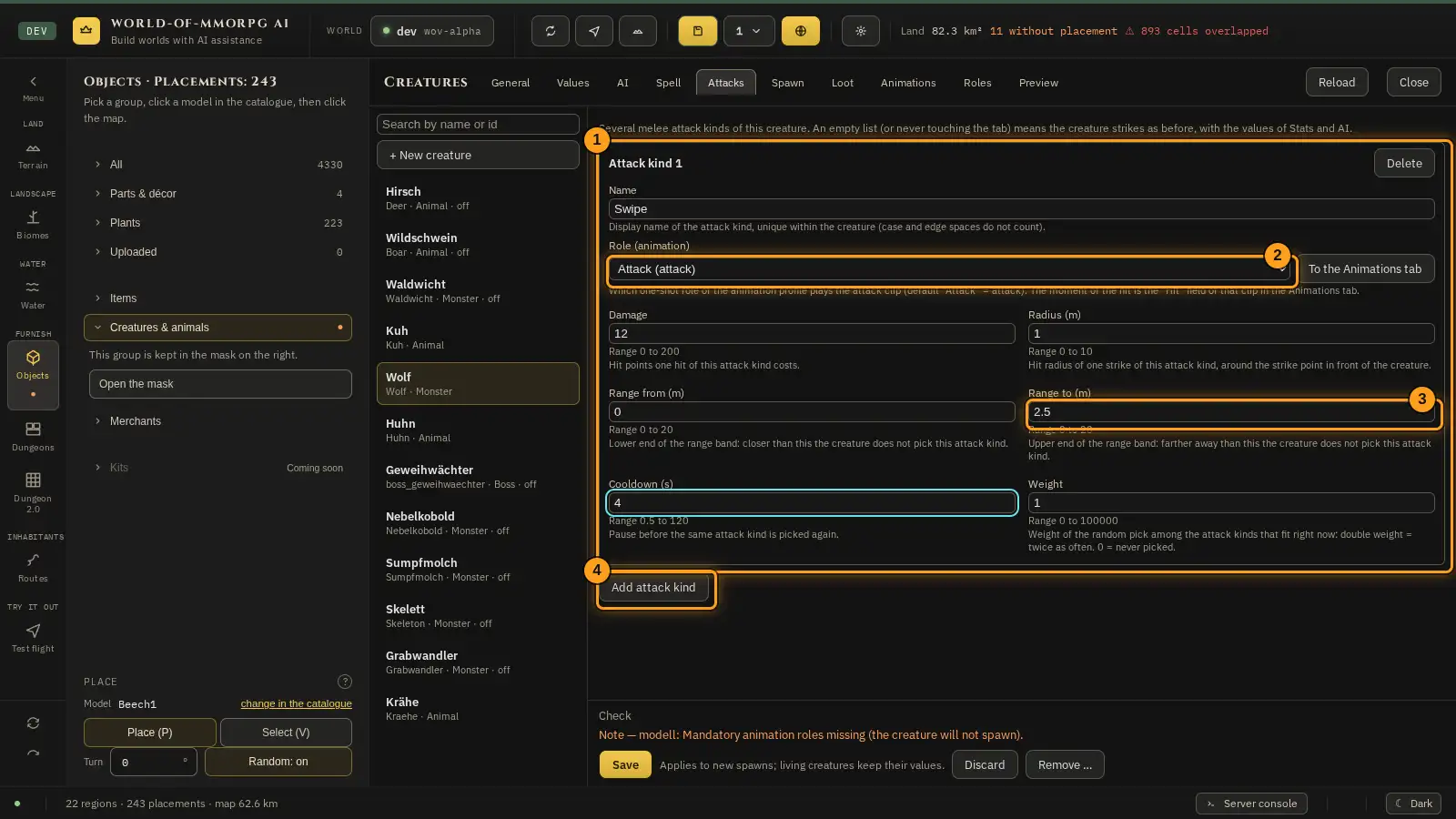
A creature can have several melee attack kinds, for example a quick swipe and a heavy stomp. At every attack the AI picks one kind that fits the distance to the target. You set this in the "Attacks" tab.
How it works
- Choose the tile "Objects" on the left, then the group "Creatures & animals", pick a creature and open the "Attacks" tab. If the list is empty (or you never touched the tab), the creature strikes as before, with the values of the "Values" and "AI" tabs.
- "Add attack kind" (4) creates a card (1) with starting values. A creature has at most four attack kinds. "Delete" takes a card out again. It is saved only with "Save".
- The "Name" is the display name of the attack kind and unique within the creature; case and spaces at the edges do not count.
- "Role (animation)" (2) names the one-shot role of the animation profile that plays the attack clip (default "Attack"). "To the Animations tab" jumps there to assign a clip to the role. The moment of the hit is the "Hit" field of that clip in the "Animations" tab.
- "Damage" (0 to 200) is the hit points one hit costs. "Radius (m)" (0 to 10) is the hit radius of one strike around the strike point in front of the creature.
- "Range from (m)" and "Range to (m)" (3) (each 0 to 20) form the range band: closer or farther away than that, the creature does not pick this attack kind. Under every number field the allowed range is shown.
- "Cooldown (s)" (0.5 to 120) is the pause before the same attack kind is picked again. "Weight" (0 to 100000) steers the random pick among the kinds that fit right now: double weight means twice as often, 0 means never.
- The attack kinds belong to the AI block: without AI (tab "AI") the creature picks none of them, and the mask points that out. Errors such as a value outside the range or a role that does not exist are reported by the check under the form.
Tip: Start with one attack kind and try it in the game. A second kind with a different range band and cooldown makes the fight more varied.
If something does not work
- The creature always strikes the same way.
- Check that the "AI" tab is switched on, that at least two attack kinds have a weight above 0, and that their range bands fit the distance: if only one kind fits, the AI always picks it. With an empty list the creature strikes as before.
Hit zones: damage per body part
What for?
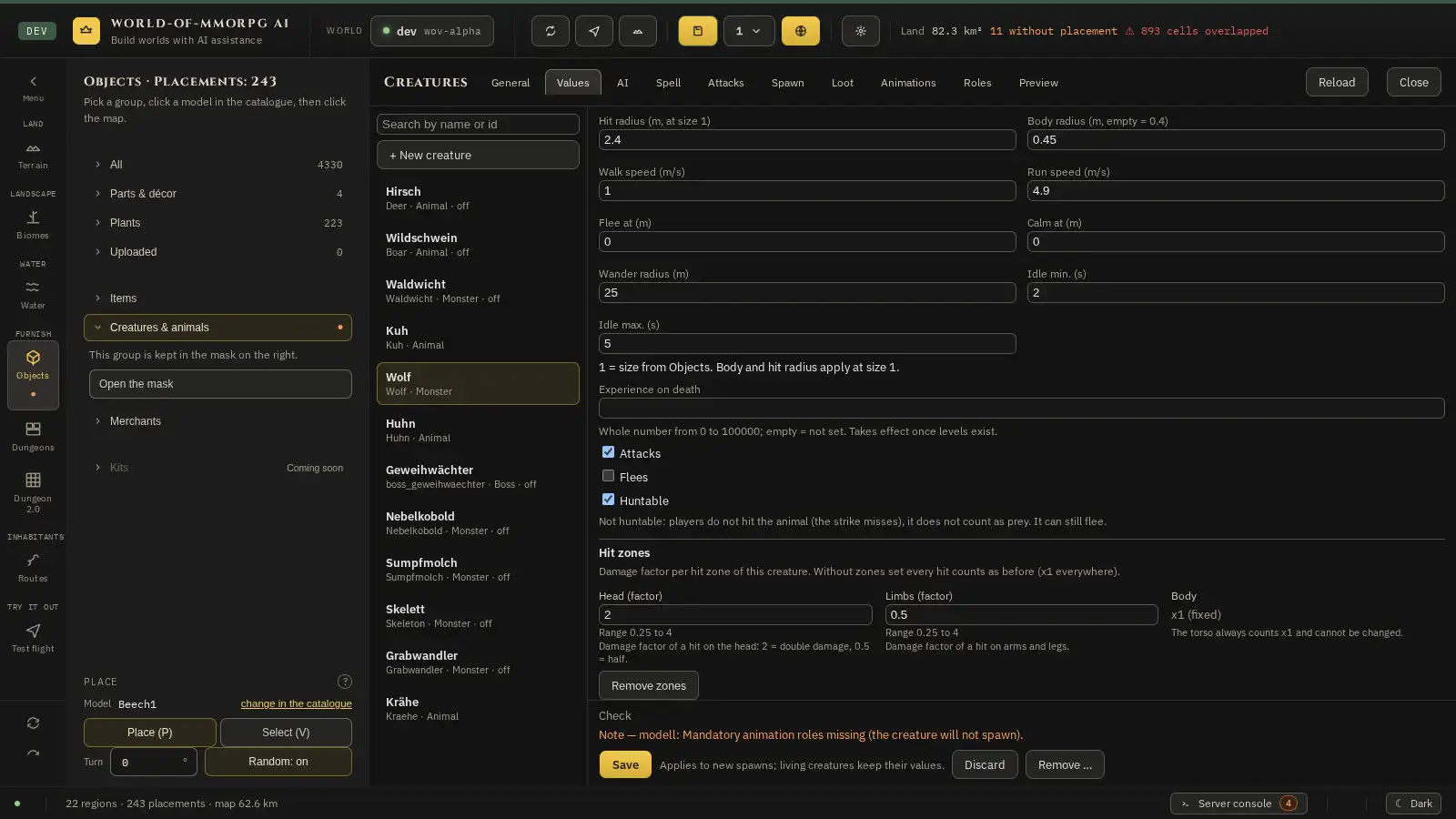
With hit zones a hit on the head or at leg height (below 35 % of the body height) counts more or less than a hit on the rest of the body. Without zones set, every hit counts as before (x1 everywhere).
How it works
- Pick a creature and open the "Values" tab. At the very bottom is the section "Hit zones". As long as no zones are set it says "No zones set — every hit counts x1."
- "Set hit zones" adds the block with starting values x1. It is saved only with "Save".
- "Head (factor)" is the damage factor of a hit on the head: 2 means double damage, 0.5 half. "Limbs (factor)" applies to hits at leg height (below 35 % of the body height); the zone follows only the height of the hit, arms count as body. Both fields allow 0.25 to 4; the range is shown under the field.
- "Body" is fixed at x1: the torso always counts x1 and cannot be changed.
- "Remove zones" takes the block out again; every hit then counts x1 again.
- The "Preview" tab shows a line with the factors of head, limbs and body, for example head x2, limbs x0.5, body x1; without zones set it says "Hit zones: none set (x1 everywhere)".
If something does not work
- The check reports "outside the allowed range" or "this is not a number".
- The factor must be a number from 0.25 to 4, a dot or a comma works as the decimal sign. Correct the field.
Effects: shaping spells
What for?
An effect is the template for the look of a spell: how sparks gather at the hand, how the ball flies and how the impact bursts. A creature only points at an effect; you build it once and use it for any number of casters.
How it works
- You open the effect mask from the creature mask: choose a creature, open the “Spell” tab and click “Edit effects …”. The mask lies over the creature mask; “Close” takes you back there, and the effect list there is read again. On the left is the list with a search field (1), on the right the chosen effect. While this mask is open, no key without Ctrl, Alt or Meta triggers an editor shortcut behind it, not even with the focus on a button or on a free area: Delete, Backspace, P, V and T leave the object selected on the map alone. Esc and Tab are the exceptions: they pass through as usual.
- The head of the mask holds id, version, display name (de), display name (en) and kind (2). The id consists of ASCII characters (a letter first, then letters, digits and single underscores, at most 24 characters) and is fixed after creating, because creatures point at it. The display names may be up to 40 characters long; the list shows the name in the language of the page. The kind is always “Projectile” today, a ball with a flight path. Below it, “Used by: …” names the creatures that cast this effect.
- “+ New effect” (3) creates a draft as a copy of the chosen effect, with the next free id; “Duplicate” copies the state shown, with your changes, as “Copy of …”. Both only reach the document after “Save”. “Delete” asks first and is locked while a creature uses the effect (the tooltip names it) or the creature state cannot be read; the operations service refuses such a deletion too. The id of a used effect cannot be changed.
- Four sections follow on the right; a click on the header folds them open and shut: Charge, Projectile, Impact and Performance (4). Every value shows its name with the unit, the allowed range and a sentence on what it does; the same sentence is the tooltip. A value outside the range is never nudged into it but reported in red in the check below; “Save” stays locked until everything fits. You write numbers with a point or a comma.
- Every phase has a colour ramp (5) of 2 to 4 stops. A stop is a position from 0 to 1 and a colour; the positions must ascend. For a particle, 0 is the moment of birth and 1 the end of its life; for the core of the ball the ramp runs over the flight time. “+ Stop” inserts a stop between the last two, “×” removes one (not below 2). The band above the stops shows the ramp as a picture; it is not particles.
- Charge is the particles that gather at the caster’s hand while the cast clip plays. “Show the charge” switches it on (off: only the clip). “Particle shape”: dot is soft and round, spark short and bright, mist large and soft; all three are drawn, there are no outside pictures. “Amount” (0 to 200 pcs) is the number of particles at the end of the charge; it rises evenly from 0. “Life time” (0.05 to 5 s) and “Size” (0.005 to 2 m) each have a “from” and a “to”, the game rolls between them. “Glow” (0 to 4) is the factor of the additive glow: 1 is normal, 4 blinding, 0 invisible. “Cloud radius” (0 to 2 m) is the distance the particles are pulled in from, “Pull” (0 to 5) how hard they dart to the hand. “Picture (sprite)” is locked and stays “procedural”.
- Projectile is the flying ball. “Speed” (1 to 40 m/s), “Range” (1 to 60 m; it flies no farther), “Flight time (maximum)” (0.1 to 8 s), “Hit radius” (0.05 to 3 m) and “Aim height” (0 to 3 m above the target’s feet; 1.2 m is about the chest) are counted by the server, the client only draws. The faster the ball, the harder it is to dodge; above about 20 m/s hardly possible. A hit counts by the hit radius, not by the size of the core. “Core” is the glowing ball itself (shape, colour ramp, size 0.02 to 3 m, glow), “Trail” the tail behind it (“Show the trail”, shape, colour ramp, amount, life time, size and glow as with the charge).
- Impact is the burst where the ball ends — in the player, on the ground, on an obstacle, or at range and flight time. “Shape”, “Colour ramp”, “Amount” (0 = no burst), “Life time” and “Size” work as with the charge. “Particle speed” (0 to 40 m/s, from … to …) is the speed with which they fly apart. “Gravity” (−20 to 20 m/s²): positive and the particles fall, at 0 they float, negative and they rise. “Flash: size” (0 to 5 m) and “Flash: duration” (0 to 1 s) describe the short flash of light at the impact point; 0 means no flash.
- Performance limits the effect for weaker machines. The “Particle cap” (1 to 200 pcs per particle system) cuts every larger amount above it; the “Far step” (10 to 100 m) is the distance to the player from which trail and charge are dropped (ball and impact stay). Both can only lower the limits of the game, never raise them. If the cap cuts an amount, the check reports a yellow note.
- The “Check” (6) is at the bottom. Red messages are errors and lock saving; yellow ones are notes, for example when nothing but the ball would be visible. “Save” writes the whole document; in the game it takes effect within a second, with no restart. If someone else saved meanwhile, the mask reloads the server state and keeps your draft. A block appears at the top with the effects that were changed, added or deleted there, each with display name and id (for example ‘Fireball (feuerball)’, the name only when it differs from the id). If that only concerns other effects than yours, it reads “Other entries changed on the server” without buttons: your draft stays, “Save” is possible and leaves the other effects as they are on the server now. If your own effect was changed or deleted there (or the id of your new one is taken), the block is called “The server state changed”: “Keep draft (overwrites the server state)” lets your next “Save” write your effect over the server state; “Take server state” drops your draft and shows the effect from the server; until you choose, “Save” writes nothing. “Reload” in the head reads the state again at any time: without input the mask takes it silently, with input your draft stays and the same block appears if something changed. “Discard” takes your changes back. The “Preview” button is still locked in this mask.
- Example spark ball: choose “Fireball” and click “Duplicate”. Set the id of the copy to funkenball and the names to Funkenball and Spark ball. In the “Charge” section change the colour ramp to light yellow into orange and the “Amount” to 60. Under “Projectile” set the “Speed” to 18 and under “Impact” “Flash: size” to 2. Click “Save”. Then you pick the effect in the “Spell” tab of a creature.
- Example arrow for archers: under “Projectile”, pick “Arrow” for “Core shape”. Instead of the glowing ball a slim arrow with a head and fletching flies, turns along the flight direction and does not glow in flight. Only the first stop of the core colour ramp (the arrow colour) and the “Core size” (the arrow length in metres, about 0.8 for an arrow) act. “Core glow” and the whole “Trail” are not drawn for an arrow; charge and impact stay as they are. “Arrow” is offered only for the core shape, not for charge, trail or impact. Today the arrow flies straight; a slight arc by gravity is not possible yet. If the creature has a bow (field “Weapon in the hand”), an arrow lies on the string while it draws, and the flying arrow looks like the arrow of the catalogue (the model “Pfeil”); without the file the game shows the simple arrow shape.
Tip: Start with a copy of the fireball and change only colours and amounts first. Turn speed and hit radius only when the look is right, because those two values decide how hard the spell is to dodge.
If something does not work
- “Save” is greyed out.
- The check holds at least one red message. It names the value and the allowed range; correct it. Yellow notes do not lock saving.
- “Delete” is locked.
- A creature uses the effect (the tooltip names it), or the creature state cannot be read. First switch the spell of that creature in the “Spell” tab to another effect or turn it off.
- The ball does not reach the target.
- The range of the creature (“Spell” tab) must not be larger than the “Range” in the “Projectile” section, otherwise the creature casts from distances at which the ball ends first; the creature’s check reports that as a note. Check the “Flight time” too: at 14 m/s and 30 m range the ball needs a good two seconds.
- The block “The server state changed” is at the top.
- Someone saved the effects since you loaded. The block names the effects that were changed, added or deleted (display name with id) and whether your own effect is affected. If it only says “Other entries changed on the server”, your effect is not affected: there is nothing to choose, you can press “Save” (if the server just refused your save it says “Nothing was saved”; click again). Otherwise choose “Keep draft (overwrites the server state)” if your state should win, otherwise “Take server state”. Without a choice “Save” writes nothing.
- The status line says “Loading failed”.
- Loading did not work: no connection, an error of the operations service or an unreadable document; the message says which. The previous state and your draft stay unchanged. Click “Reload” at the top as soon as the service answers again. As long as no state has ever been loaded, “Save” says: “No state has been loaded from the server yet.”